

Configure CASB Connect for Atlassian Confluence
| Limited Availability: Cloud Atlassian Confluence is a Limited Availability feature. To enable this feature, contact Skyhigh Support. |
To configure Atlassian Confluence to work with Skyhigh CASB, you must enable API access in Skyhigh CASB, then enable and configure Webhooks in Confluence.
Enable API Access in Skyhigh CASB
- Go to Settings > Service Management.
- Click Add Service Instance and select Confluence.
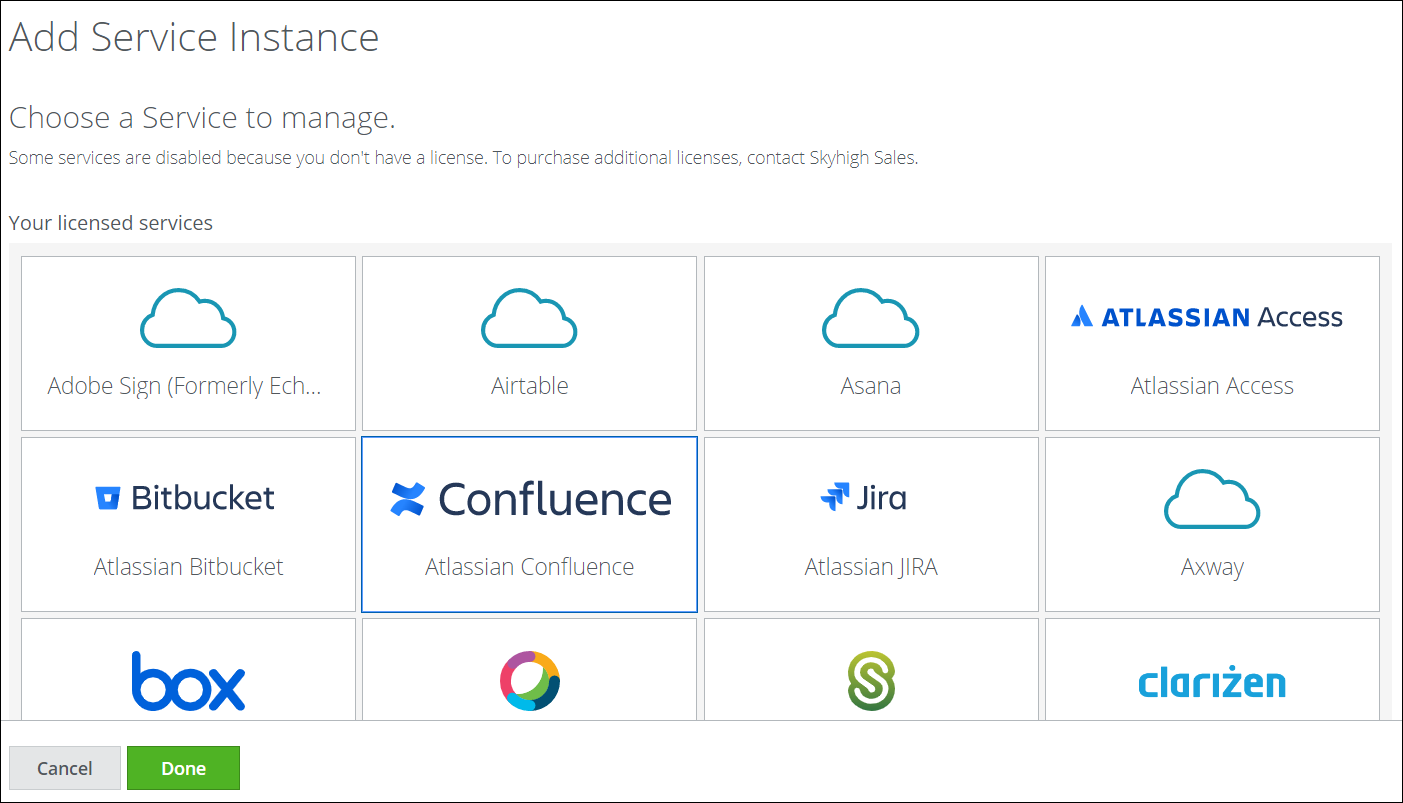
- Add a name for the instance and click Done.
- Select the service instance, go to the Setup tab, and click Enable API.
- Select Provide API Credentials.
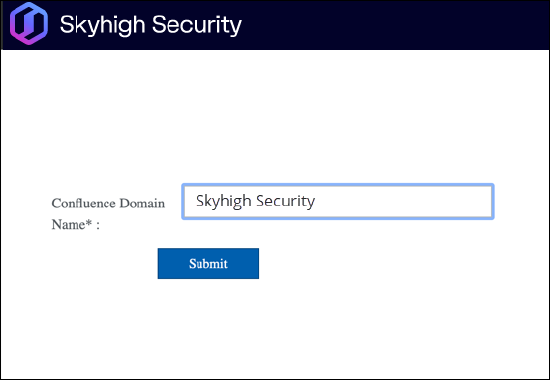
- Enter the Confluence Domain of your organization. Click Submit.
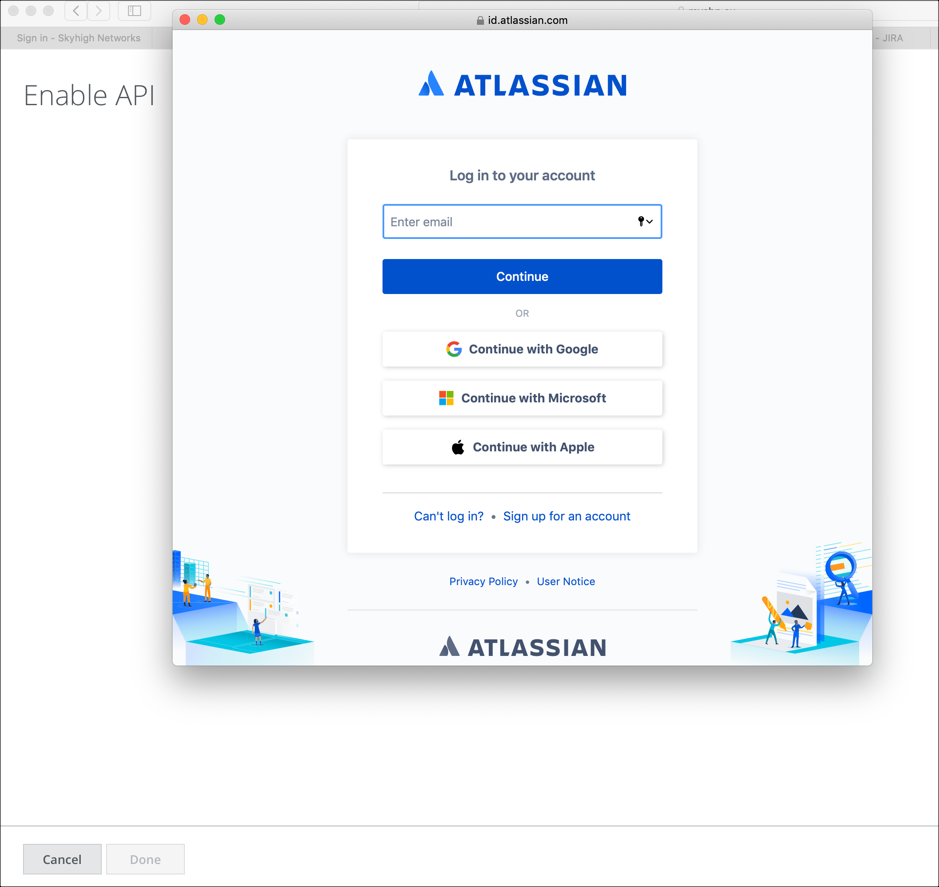
- Log in with your Atlassian admin credentials.
- Select the domain under Authorize for, and click Accept.
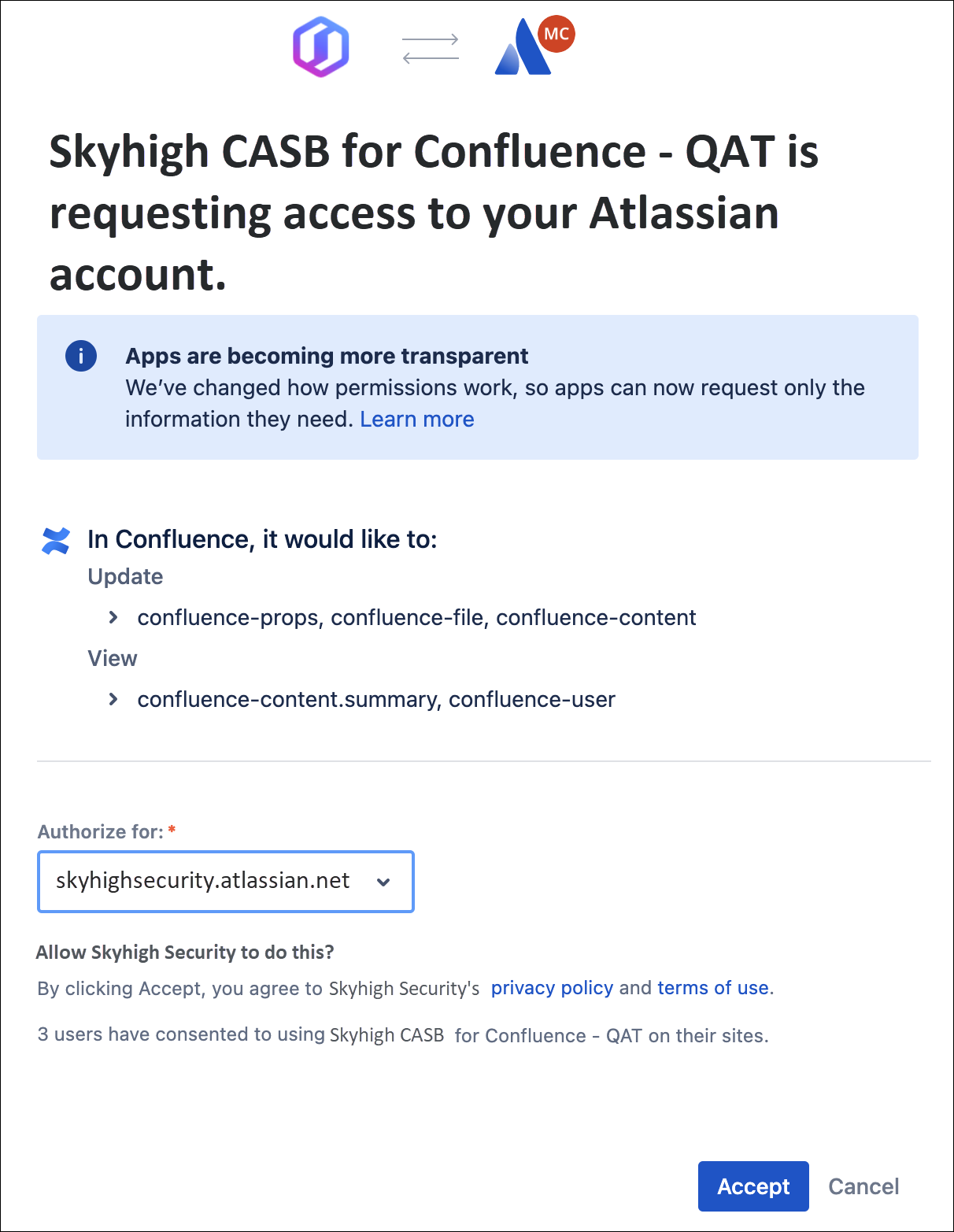
API access is now enabled for Atlassian Confluence.
Enable Webhooks in Confluence
Before configuring Webhooks in Confluence, you need to enable Webhooks in the Confluence UI. To enable Webhooks, perform the installation instructions provided here.
Configure Webhooks in Confluence
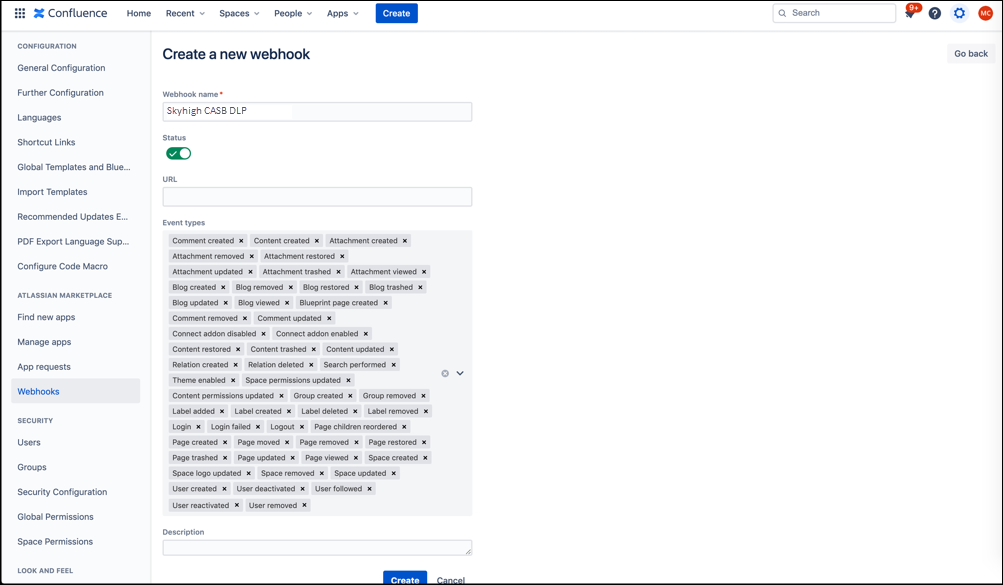
- In the Confluence console, click Settings.
- From the Atlassian Marketplace menu, select Webhooks.

- Click Add Webhook.
- Webhook name. Enter a name for the webhook. For example, Skyhigh Security Skyhigh CASB DLP.
- URL. Contact Skyhigh Support to enter one of the webhook URLs for your Confluence account in the URL field.
- Choose all events in the Event types field. (DLP is supported only for comments and pages. All other events are logged under Activity Monitoring.)
- Click Create.
Allow list
After configuring Webhooks in Confluence, you can add IP addresses to the allow list in Atlassian. This helps to integrate Skyhigh CASB with Confluence successfully.
Under Security > IP allowlisting, if you have enabled IP allowlisting, make sure to add the IP addresses to the allow list. To integrate Skyhigh CASB (US Prod) with Confluence, add the following IP addresses to the allow list:
- 52.42.179.76
- 35.167.156.248
- 34.215.230.220
- 52.34.250.140
- 54.70.91.35
- 52.24.211.31
- 44.234.215.175
Migrate Instances Between PoPs
To enhance performance, scalability, and security, we are transitioning our services from the current infrastructure to a newly established Point of Presence (PoP) specifically designed for processing CASB API-based services. If your instance is part of this migration, the Skyhigh support team will reach out to you and assist with the process.
Perform the steps below to complete the migration:
- Follow the configuration steps to add a new webhook URL to your existing app. Contact Skyhigh Support to obtain the region-specific webhook URLs required for configuring a webhook for the new AWS PoP.
- After you add the new webhook URL to your existing app, the Support team will migrate your instances to the new PoP.
- Once the instance is successfully running in the new environment, the Skyhigh support team will contact you.
- After Skyhigh confirms the successful migration, delete the old webhook URL from the app.