

Change Password
You may need to change your Skyhigh CASB password occasionally.
You can change your Skyhigh CASB password in two places:
- The login screen.
- The Change Profile page.
Follow the steps below to change your password using the login screen:
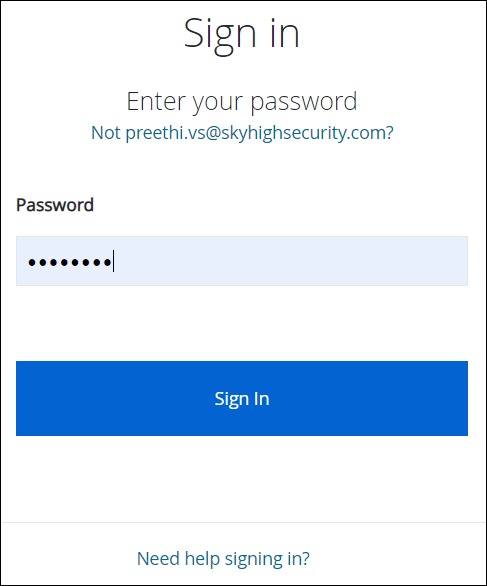
- From the login screen, click Need help signing in?
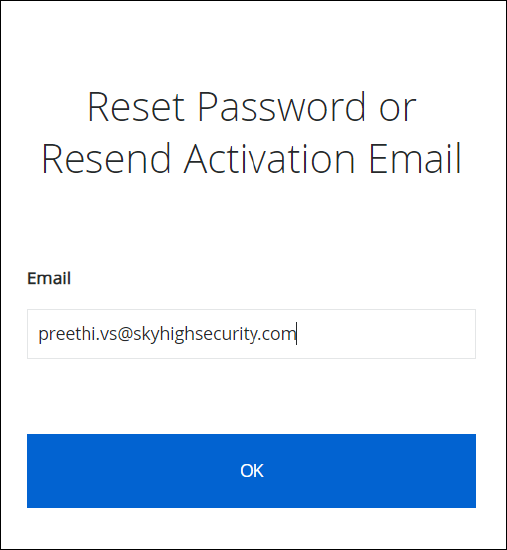
- Enter your email, and click OK.
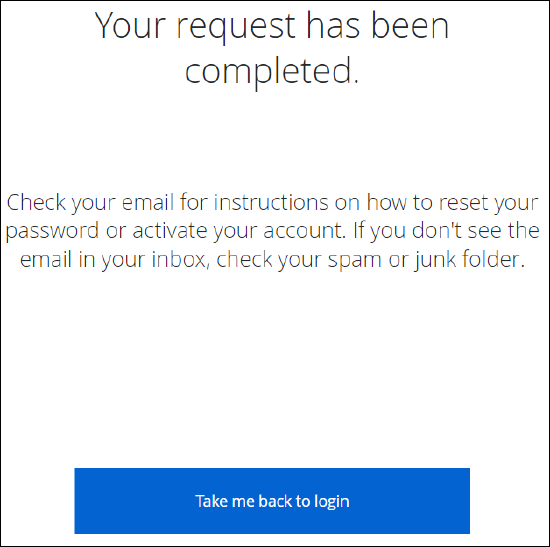
You will receive the Reset password email.
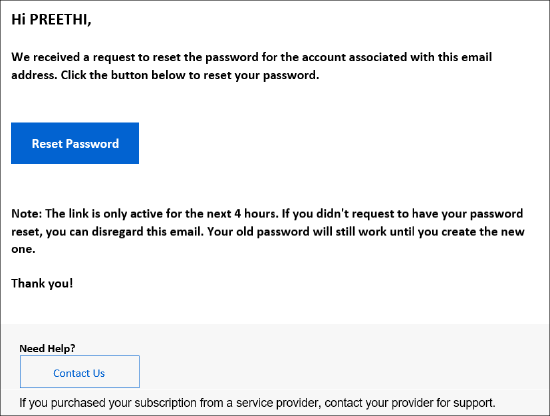
- Go to your email and click Reset Password.
- On the Set your Skyhigh Security Password screen, enter the new password.
To reset your password, follow the password requirements of at least:- Ten alphanumeric characters.
- One lowercase letter.
- One uppercase letter.
- One number.
- One symbol.
- No parts of your username.
- Your password cannot be any of your last 10 passwords.
- Under Repeat Password, re-enter your new password.
- Click Set Password.