

Create and Assign User Roles
| Limited Availability: To access the Roles feature, contact Skyhigh Support. |
Use the Users and Roles page to create roles with permissions and assign them to users. Multiple roles can be assigned to a single user.
Follow the steps below to create a role and assign it to the users:
- Go to Settings > User Management > Users and Roles.
- Click the Roles tab.

- Click Create Role.
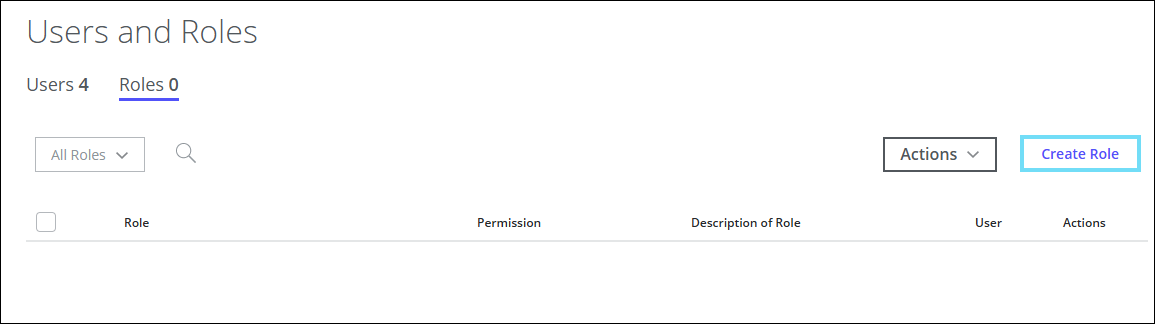
- On the Create Role page:
- Under Role Details, enter the role name in the Role Name field.
- Under Access Control, select a combination of User Permissions that grants the user the level of access you prefer.
- By default, all permissions are set to Manage. Switch the toggle to set the required permissions to Read Only. To grant a user read-only access, select Set all to: Read Only. A read-only user can follow the steps to configure or use a feature, but they cannot save any changes. For details, see Read-Only Users.
NOTE: At least one permission must be selected to create a role.

- On Role Details, click Select Users.
The Select Users panel appears. - On the Select Users panel, select checkboxes to choose users, and click Save.
- Search. You can search for the user names.
- Show selected only. By default, the toggle button is set to OFF status. Switch the toggle button to display only the selected users.

When you save the selected users, they appear in the Role Details section.
- Under Role Details, add a brief description of the role in the Description field, then click Save.

The newly created role is listed in the Roles tab.

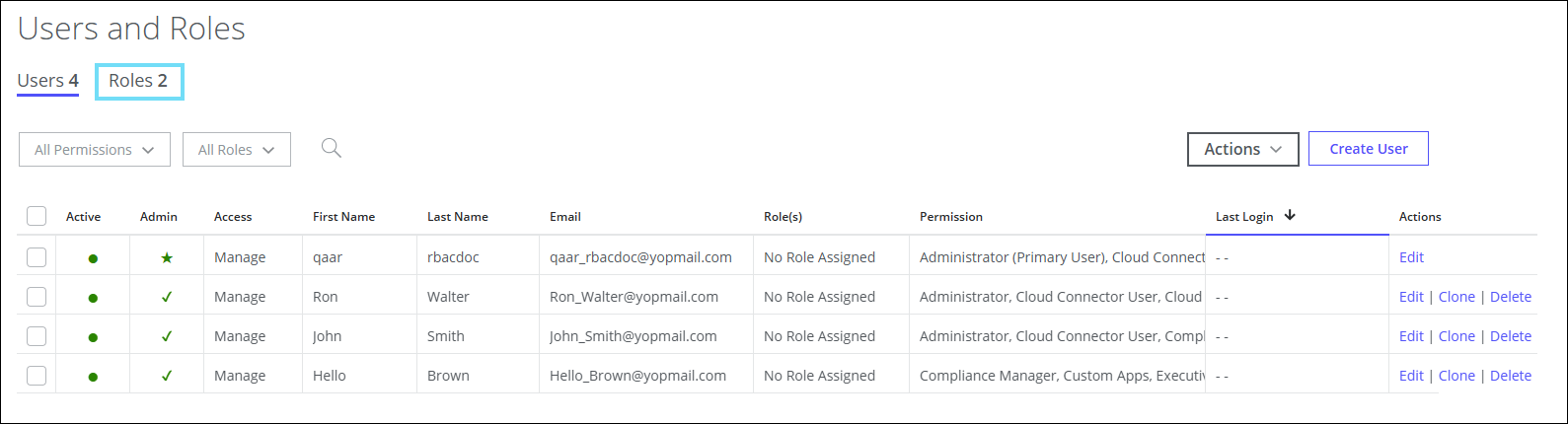
The Users tab on the Users and Roles page now shows each user's assigned roles.

You can create multiple roles and assign them to the users.
Assign a Role to Users
NOTE: You can assign multiple roles to a single user. When multiple roles are assigned, the user is granted the combined permissions from all assigned roles.
If you have created a role and not assigned it to users, or if you want to add more users to a role, then follow the steps below to assign a role to users:
- Go to Settings > User Management > Users and Roles.
- Click the Roles tab.
- On the User column, click Add.
The Assign Users panel appears.

- On the Assign Users panel, select checkboxes to choose users, and click Save.

The User column displays the number of users assigned to the role. To add more users to the role, click the corresponding number in the User column, select users from the Assign Users panel, and then click Save.

The Users tab on the Users and Roles page now shows each user's assigned roles.
