

DLP for ChatGPT
ChatGPT API integration with Skyhigh CASB offers comprehensive DLP controls for ChatGPT, preventing sensitive data leakage to the cloud. You can create a DLP policy with the supported policy rules and response actions to detect sensitive content and enable remediation actions for:
- File attachments
- Messages (prompts and responses) posted in ChatGPT
You can remediate ChatGPT-related incidents manually or in bulk.
Create a DLP Policy for ChatGPT
Create DLP policies for ChatGPT to protect sensitive organizational data. When you apply DLP policies to ChatGPT prompts and responses, if any policy violations occur, Skyhigh detects them and generates incidents. Based on your policy configuration, Skyhigh enforces remediation actions such as deleting content or sending notification emails for the incident.
This ensures sensitive data is protected and policy violations are handled consistently across your organization.
NOTE: The following policy is provided as an example. You can define multiple policies with granular controls to protect organizational data.
Follow the steps below to create a DLP policy:
- Go to Policies > DLP Policies > DLP Policies.
- Select Actions > Sanctioned Policy > Create New Policy.
- On the Description page, name the policy and describe its status and scope, and then click Next:
- In the Name field, enter the name of the policy.
- Click Select Service Instances.
A right panel appears. - On the Select Service Instances panel, select the instances to enforce the policy. Click Done.
This policy applies only to the selected instances.

- On the Rules & Exceptions page, enter the following information:
- Select the Keywords rule group from the menu.

A right panel appears.
- On the Select Keywords panel, enter keywords to detect in ChatGPT prompts and responses. Click Done.
The policy blocks further actions when these keywords are detected in ChatGPT prompts and responses.
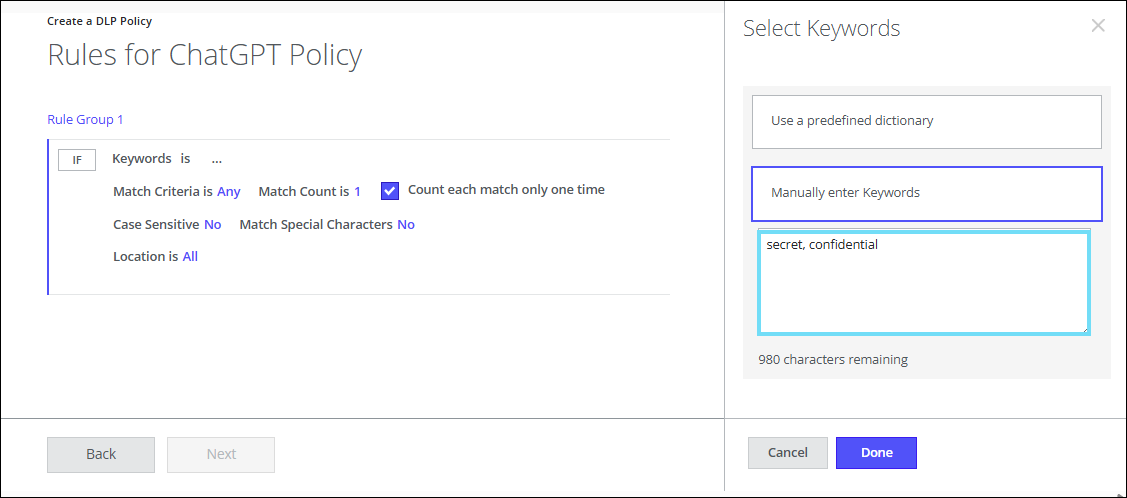
- Select the severity Critical from the menu, and then click Next.

- Select the Keywords rule group from the menu.
- On the Responses page, select Delete response action. Click Done.
When ChatGPT identifies the above-mentioned keywords in prompts and responses, it deletes the content.

- Click Next.
- On the Delete File dialog, click OK.

- On the Review page, review your policy and click Save.

You can create multiple rules and rule groups for a single policy. For more information on creating a DLP policy, see Create a Sanctioned DLP Policy.
Enforce a DLP Policy in ChatGPT
When a ChatGPT prompt and response violate the configured policy, the Skyhigh enforces the policy and takes the remediation action as defined in the policy. In the above example, Skyhigh deletes the entire conversation (prompt and response) that includes keywords specified in the policy (such as secret and confidential).


An incident is generated in the Policy Incidents page.
View ChatGPT Incidents on the Policy Incidents Page and AI Dashboard Card
You can view ChatGPT incidents on the Policy Incidents page using Skyhigh Recommended views. Additionally, you can view the ChatGPT incidents on the AI dashboard card.
- To view ChatGPT incidents on the Policy Incidents page, go to Incidents > Policy Incidents > Policy Incidents > Views > Skyhigh Recommended > ChatGPT Incidents. For details, see Policy Incidents.

- To view ChatGPT incidents on the AI Dashboard cards, go to Dashboards > Skyhigh Default > AI Dashboard. For details, see Monitor ChatGPT Incidents on the AI Dashboard.

Supported DLP Rules, Response Actions, and Remediation Types in ChatGPT
- ► Click to view the supported DLP policy rules, response actions, and remediation types in ChatGPT.
-
Legends: .png?revision=1) Supported
Supported .png?revision=1) Not Supported
Not SupportedDLP Policy Rules Supported Classification
.png?revision=1&size=bestfit&width=25&height=25)
Data Identifier File Name File Size File Type Keywords Regular Expression Enhanced IDM/EDM User Groups User Dictionaries Content-Dedupe (Messages) On Premises EPO Classification OCR (Optical Character Recognition) Match-Highlights (AWS/Skyhigh Default) Custom Email Template Content-Dedupe (File) .png?revision=1&size=bestfit&width=25&height=25)
Metadata-Dedupe Enterprise DLP Malware DLP Policy Response Actions Supported Delete
User Email Notification Send Email Notification Allowed Remediation Supported Manual Remediation Auto Remediation Bulk Remediation
Ares Bulk Remediation End User Remediation Self Remediation