

Create a New User
Accounts with the User Manager permission can create new users. When you create a new user, you will set their user roles and data access levels.
Be sure to use a valid email address for the user. For non-SAML users (meaning the user logs in with username and password credentials), a user activation email is sent once the account is created. The user must click the link in the email to create a password and activate their account.
NOTE: Previously, when you deleted a user's account, you could not reuse that email address. Now you may recreate that user account using the same email address, but it will be a new account. No Saved Views, Reports, or other user settings will be available from the old account.
To add a new user:
- Go to Settings > User Management > Users.
- Click Actions > Create New User.
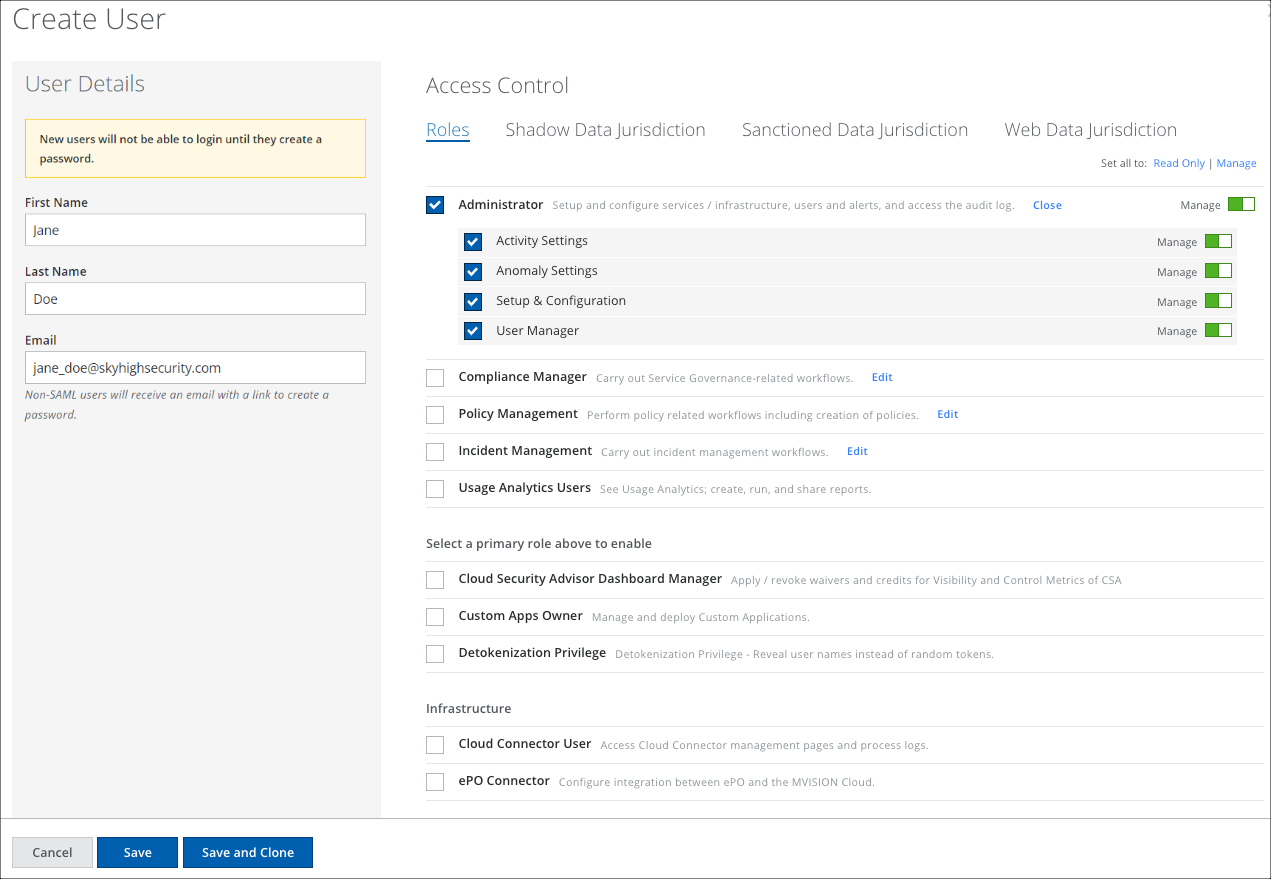
- Under User Details, add the following information:
- First Name. Enter the user's first name.
- Last Name. Enter the user's last name.
- Email. This will be the user’s login credential. The user will receive an email with a link to create a password.
- Correlation ID. This is a unique identifier for users generated by your IdP for SAML logins.
- OPTIONAL: To give a user Read Only access, select Set all to: Read Only. A Read Only user can go through the steps of configuring or using a feature, but they cannot save any changes. For details, see Read-Only Users.
- Under Access Control, on the Roles tab, choose a combination of User Roles that grant the user the level of access you prefer.
- If needed, select a Data Jurisdiction tab, and select a Shadow or Sanctioned Data Jurisdiction option to enforce data access and set the default UI view for the user.
- Click Save.
Configure Roles to View Cloud Usage Analytics on the Cloud Registry and Services Pages
Users with only the Cloud Registry role cannot access usage analytics information. However, they can view the Overview and Risk sections of a service and can also request new services. To access usage information of a service (such as usage reports, analytics, and activity metrics) on the Cloud Registry and Services pages, users must have the Usage Analytics role in addition to the Cloud Registry role. Administrators must assign both roles to enable users to view cloud usage analytics. Once assigned, users can select any CSP on the Cloud Registry or Services page to view detailed cloud usage data for the selected CSP.

Shadow Data Jurisdiction
When a user is assigned the Cloud Registry permission, Data Jurisdictions can be applied to their profile. Once applied, the Services page filters to display only services within those specific jurisdictional boundaries.
The level of service detail available on the Cloud Registry page depends on whether the user is assigned to a specific data jurisdiction:
-
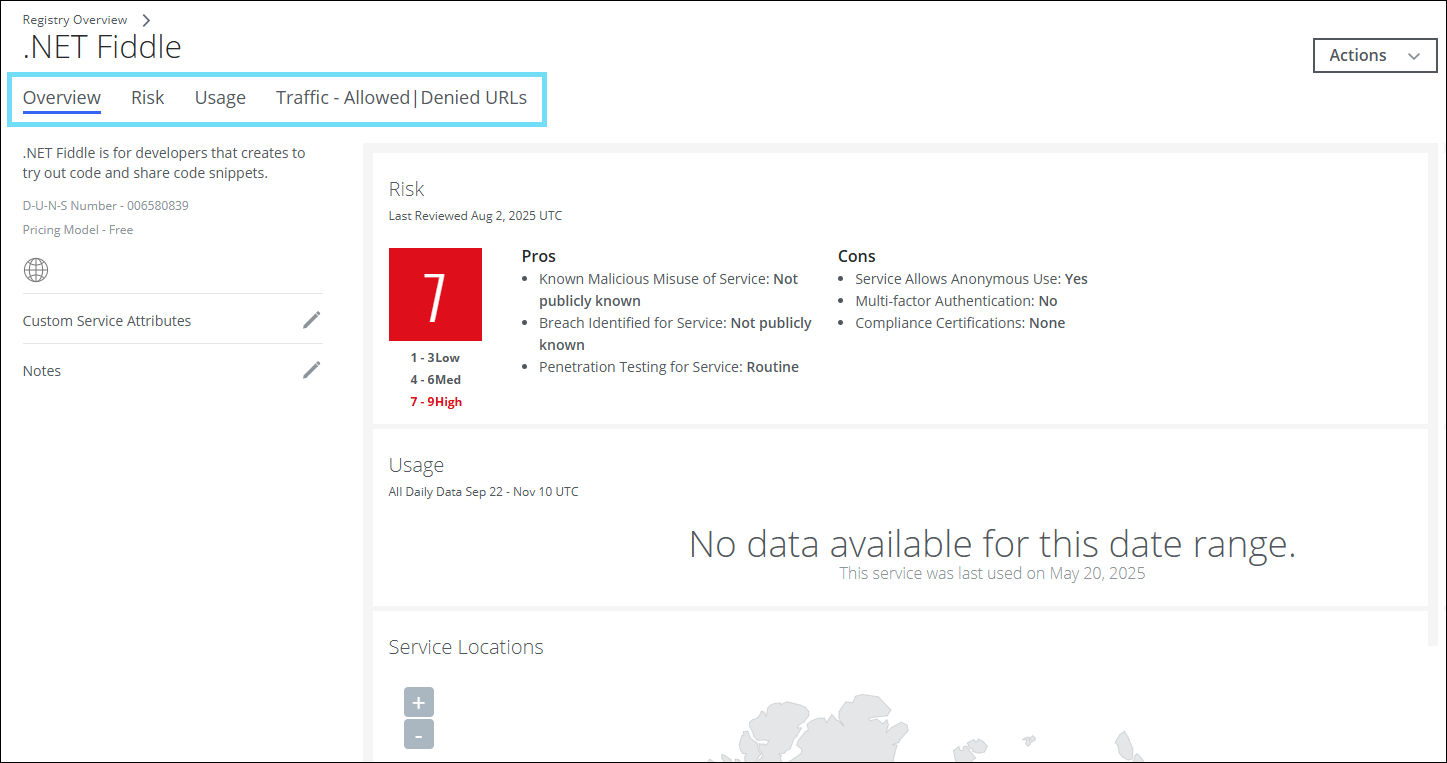
In-jurisdiction services. In the Cloud Registry, if a user accesses a service that falls under their jurisdiction, they have full visibility into service details, including the Overview, Risk, Usage, and Traffic (Allowed/Denied URLs) tabs.
-
Out-of-jurisdiction services. In the Cloud Registry, when a user accesses a service beyond their jurisdiction, visibility is restricted. The user can only view and access the Overview and Risk tabs to evaluate the service's basic profile. However, the Service page lists all services under their jurisdiction.
IMPORTANT: Users with Administrator and Compliance Manager permissions cannot be assigned to a Data Jurisdiction. However, users with only the Cloud Registry permission under Compliance Manager can be assigned to a Data Jurisdiction. For details, see About Data Jurisdictions.