

Tenant Restrictions in Microsoft O365
Tenant Restrictions in both v1 and v2 block access to Microsoft 365 services when users attempt to sign in with personal or unauthorized accounts and allow access only through the accounts you configure in the policy. Version v2 strengthens this enforcement and supports a wider range of authentication methods.
This section explains how to configure Tenant Restrictions in v1 and v2. Use the procedure appropriate for the version supported in your environment.
Tenant Restrictions v1
Tenant Restrictions v1 blocks access to Microsoft 365 services when users attempt to sign in with personal or unauthorized corporate accounts. The proxy injects the Restrict-Access-To-Tenants and Restrict-Access-Context headers to enforce tenant-level access.
Blocking Sign-Ins from Other Corporate Domains
- Allow Microsoft Entra authentication URLs to reach the following authentication domains:
login.microsoftonline.comlogin.microsoft.comlogin.windows.net- Rule Configuration:
- Rule Condition: URL.Host is
login.microsoftonline.com,login.microsoft.com, orlogin.windows.net - Action: Continue
- Rule Condition: URL.Host is
- Rule Configuration:
- Add Tenant Restriction headers
Configure the events as follows:
Header.RemoveAII("Restrict-Access-To-Tenants")


Header.Add("Restrict-Access-To-Tenants", "<List of tenant identifiers>")
OR
Header.AddMultiple("Restrict-Access-To-Tenants", Microsoft 365 Allowed Tenants)
Header.RemoveAll("Restrict-Access-Context")


Header.Add("Restrict-Access-Context", "<Your directory ID>")
Sample Output:

- Verify that the proxy injects the correct tenant identifiers and directory ID.
- Confirm that users receive a prompt when they sign in with a different corporate account.
Blocking Personal Microsoft Accounts
- Use
login.live.comas the authentication domain for Microsoft personal accounts. - Apply the MSA restriction header
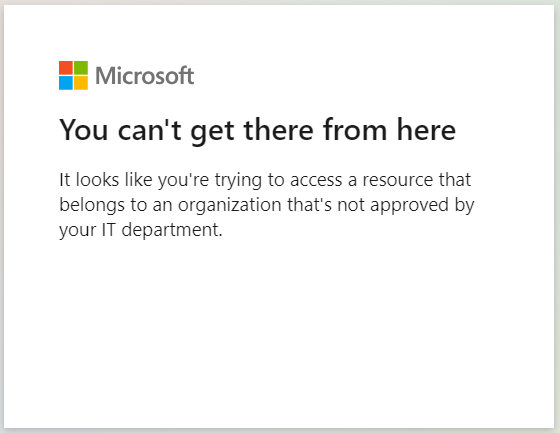
Header.Add("sec-Restrict-Tenant-Access-Policy", "restrict-msa") - Verify that the rule blocks personal account sign-ins and displays the expected restriction message.
Sample Output:
Tenant Restrictions v2
Tenant Restrictions v2 use a single header, sec-Restrict-Tenant-Access-Policy, to enforce stronger and more consistent tenant-based access controls across Microsoft authentication endpoints.
- Configure the v2 header as below:
- Header name.
sec-Restrict-Tenant-Access-Policy - Header value.
<TenantId>:<policyGuid>
- Header name.
Example. aaaabbbb-0000-cccc-1111-dddd2222eeee:1aaaaaa1-2bb2-3cc3-4dd4-5eeeeeeeeee5
NOTE: TenantID is your Microsoft Entra tenant ID. You can find this value by signing in to the Microsoft Entra admin center and navigating to Entra ID > Overview > Properties. policyGUID is the object ID of your cross-tenant access policy. You can obtain this value by calling /crosstenantaccesspolicy/default and using the id field from the response.
- Apply the v2 header on your proxy by sending it to these Microsoft sign-in domains:
login.live.comlogin.microsoft.comlogin.microsoftonline.comlogin.windows.net
NOTE: This header enforces the tenant restrictions v2 policy for all sign-ins on your network. It does not block anonymous access to Teams meetings, SharePoint files, or other resources that do not require authentication.
- When you inject the new
sec-Restrict-Tenant-Access-Policyheader, remove the two v1 headers:
Restrict-Access-To-TenantsRestrict-Access-Context