

Deploy Skyhigh Client Using Intune
This topic provides step-by-step instructions for deploying the Skyhigh Client (SC) on Windows using Microsoft Intune. It also explains how to monitor the SC status, which ensures the Client is functioning seamlessly across managed devices.
- ► Deploy the Skyhigh Client on Windows
-
Steps for Validating SC Deployment and Monitoring the Status of the Skyhigh Client
- Enroll the Device
- Deploy Skyhigh Client and Apply Policy
- Create an SC Compliance Script to Monitor SC Status
Enroll the Device
Enrolling the device in Microsoft Intune helps you in enabling centralized management, enforcing policies, and remotely deploying the SC.
- Navigate to Settings > Accounts > Access work or school > Add a work or school account.
- Enter the user’s credentials to link the device to the organization’s domain.
Deploy Skyhigh Client and Apply Policy
Deploying the Skyhigh Client and applying the policies on managed devices ensures consistent security enforcement and effective traffic control.
Prerequisites
- Active Intune subscription.
- Intune-managed device.
Deploy Skyhigh Client
- Download the Skyhigh Client version using this link.
- Log in to the Intune Admin portal using this link.
- From the menu, select Apps.

- Select the platform as Windows.

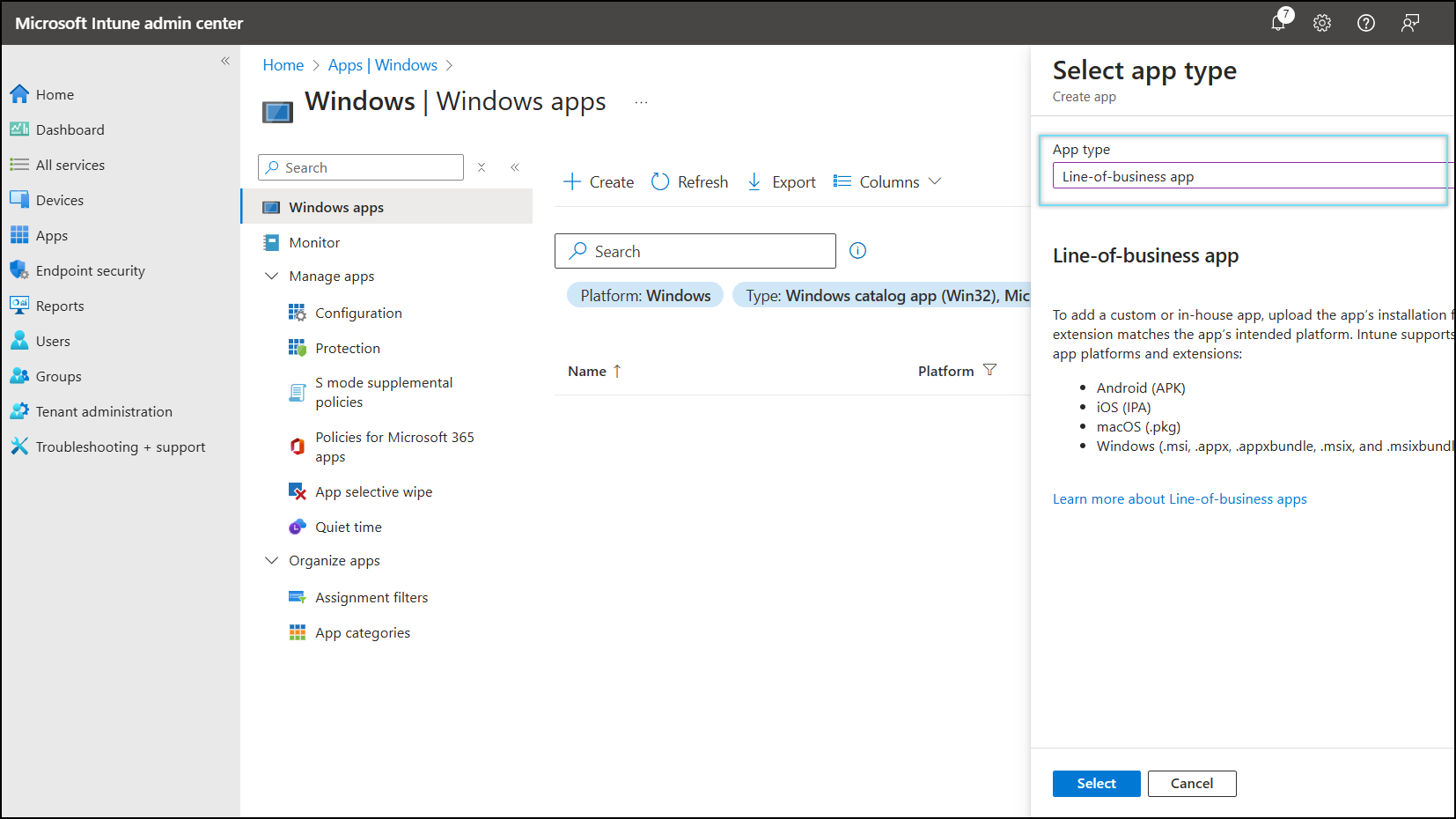
- Click Create.

- In the App Type field, select Line-of-business app.
- Click Next.
- Browse and select the Skyhigh Client MSI file from the App package file.
NOTE: The Scpinstaller.x64.msi represents the application package of Skyhigh Client. The app package filename will be renamed accordingly in the future release.

- Click OK.
- Enter the following settings:
- Name = Skyhigh Client
- Description = Skyhigh Client
- Publisher = Skyhigh Security
- Ignore app version = Yes
- Category = Other app
- Show this as a featured app in the Company Portal = Yes
- Developer= Skyhigh Security
- Owner = Skyhigh Security
- Logo = Select the Skyhigh Security Logo

- Click Review + save.
- In the Assignment tab, add All Devices for Required and All users for Available for enrolled devices.

- Click Next.
- Review the app details and click Create.

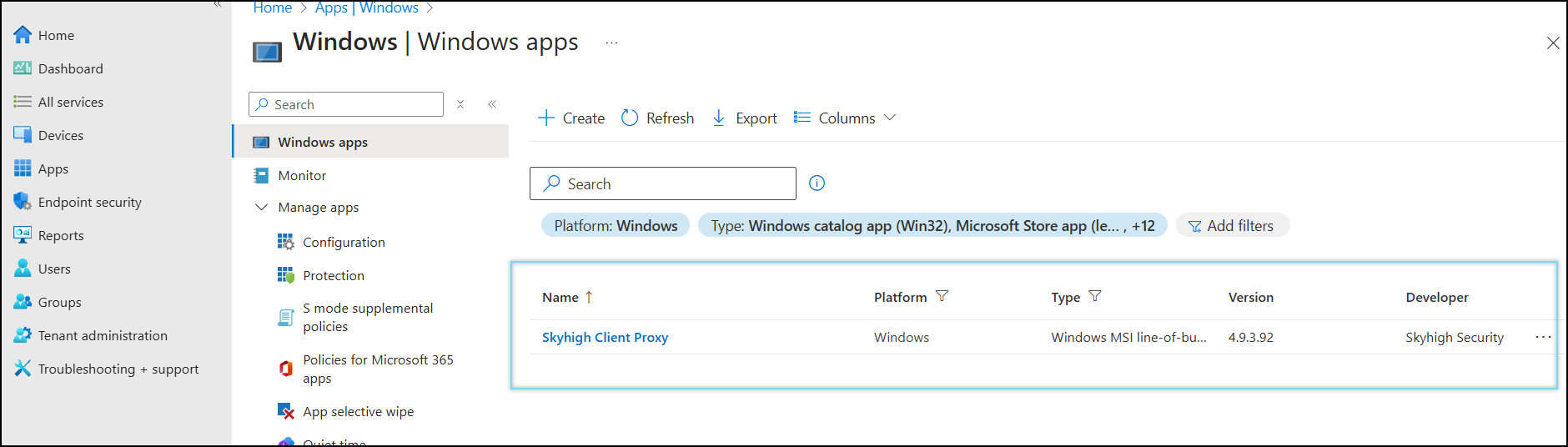
The apps created are displayed in the app section of the Intune Admin portal.
OPG File Deployment
- Create a folder by navigating C:\Config_files\. in the local machine.
- Export the
.opgpolicy file from the Skyhigh Security Tenant. - Rename the
.opgfile toscppolicy.opg - Copy the file
scppolicy.opgtoC:\Config_files\ - Create the following
.batfiles by navigatingC:\Config_files\:- copy.bat
- del.bat
- Copy the following code to copy.bat file.

- Copy the following code to del.bat file.

C:\Config_files\contains these 3 files:

- Download the IntuneWinAppUtil.exe File using the link.
- Create a folder by navigating C:\Temp\Build\ in the local machine.
- Run the IntuneWinAppUtil.exe in CMD with admin permissions.
- Run the following settings in the CMD prompt :

The output looks like this:

- Ensure that the copy.intunewin file are created in C:\Temp\Build\.
The OPG deployment package generated can be utilized with Intune to configure the SCP policy.

- Login to Intune Admin Portal.
- Click Create.
- Select Windows app (Win32) In the App type.

- Click Next.
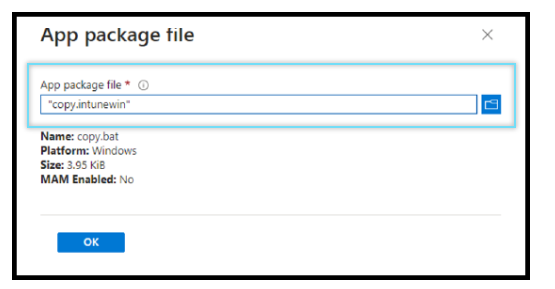
- Browse and select the copy.intunewin file from the App package file.
- Enter the following settings:
- Name = Skyhigh OPG
- Description = Skyhigh Proxy Config
- Publisher = Skyhigh Security
- App version = 5.0.0

- Click Next.
- Select Install command and Uninstall command files in the Program tab.

- Click Next.
- Select Operating system architecture and the Minimum operating system in the Requirements tab.

- Click Next.
- Select Manually configure detection rules in the Detection rules tab.

- Click Next.
- Review the dependencies, if added in the Dependencies tab.

- Click Next.
- Review the Supersedence, if added in the Supersedence tab.

- Click Next.
- Add All users for Required and All devices for Available for enrolled devices, in the Assignments tab.

- Click Next.
- Review the policy details and click Create.

The SCP client and the corresponding OPG file are automatically deployed to the Intune-managed device.
Create an SC Compliance Script to Monitor SC Status
The creation of a compliance script by Intune helps in monitoring the SC, which provides the real-time functionality status for managed devices.
NOTE: Download the scripts using this link.
- Login to Intune Admin portal.
- Navigate to Devices > Compliance > Scripts > Add > select Windows 10 and later.

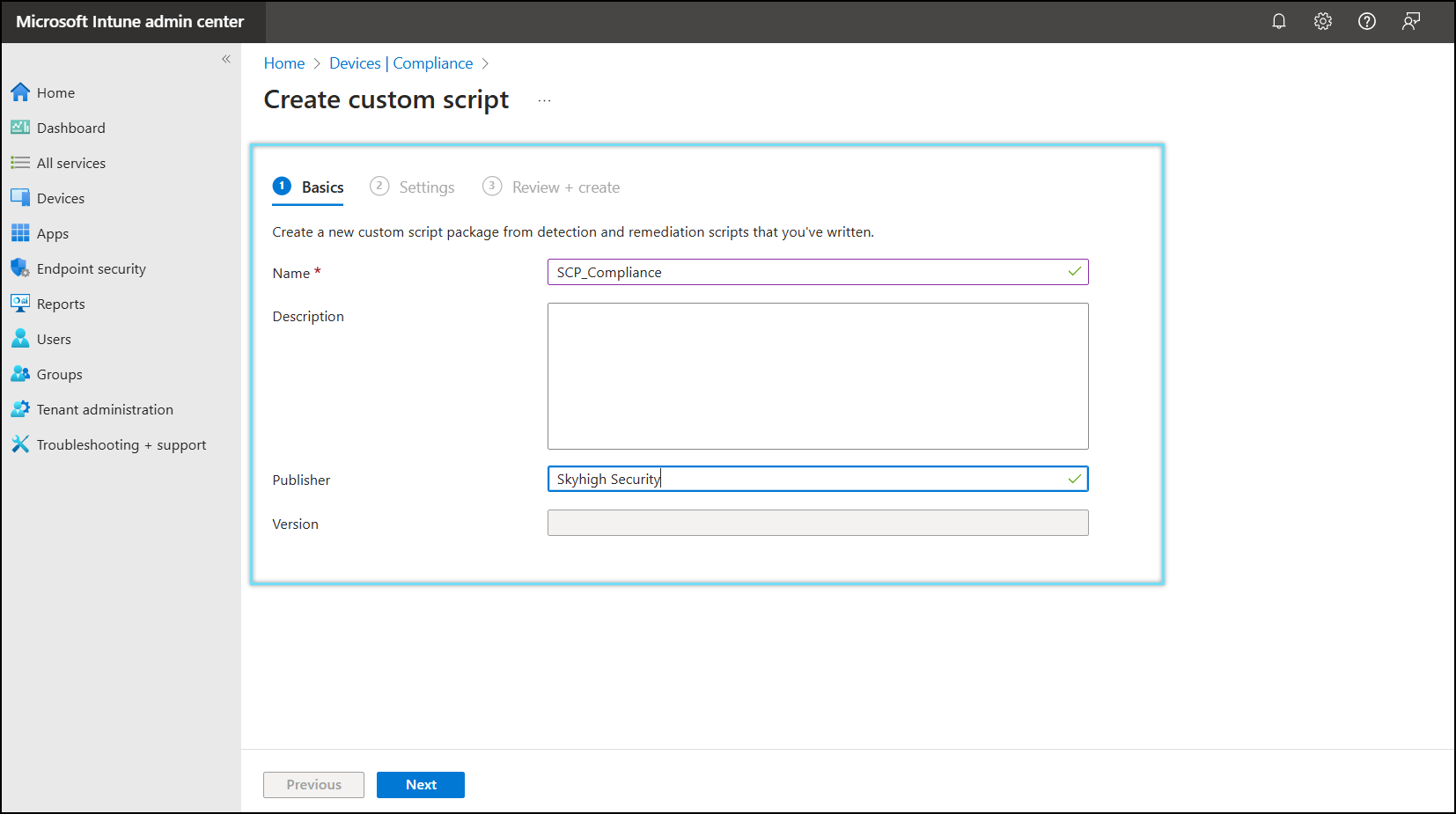
- In the Basics tab, add Name, Description, and Publisher as Skyhigh Security.
- Click Next.
- In the Detection script field, add the script.

- Click Next.
- In the Review+create tab, review the compliance script and click Create.

The newly created configuration is displayed under Devices > Compliance.

- Navigate to Devices > Compliance > Policy> Create Policy > select platform as Windows 10 and later.

- Click Create.
- Enter Name and Description in the Basics tab.
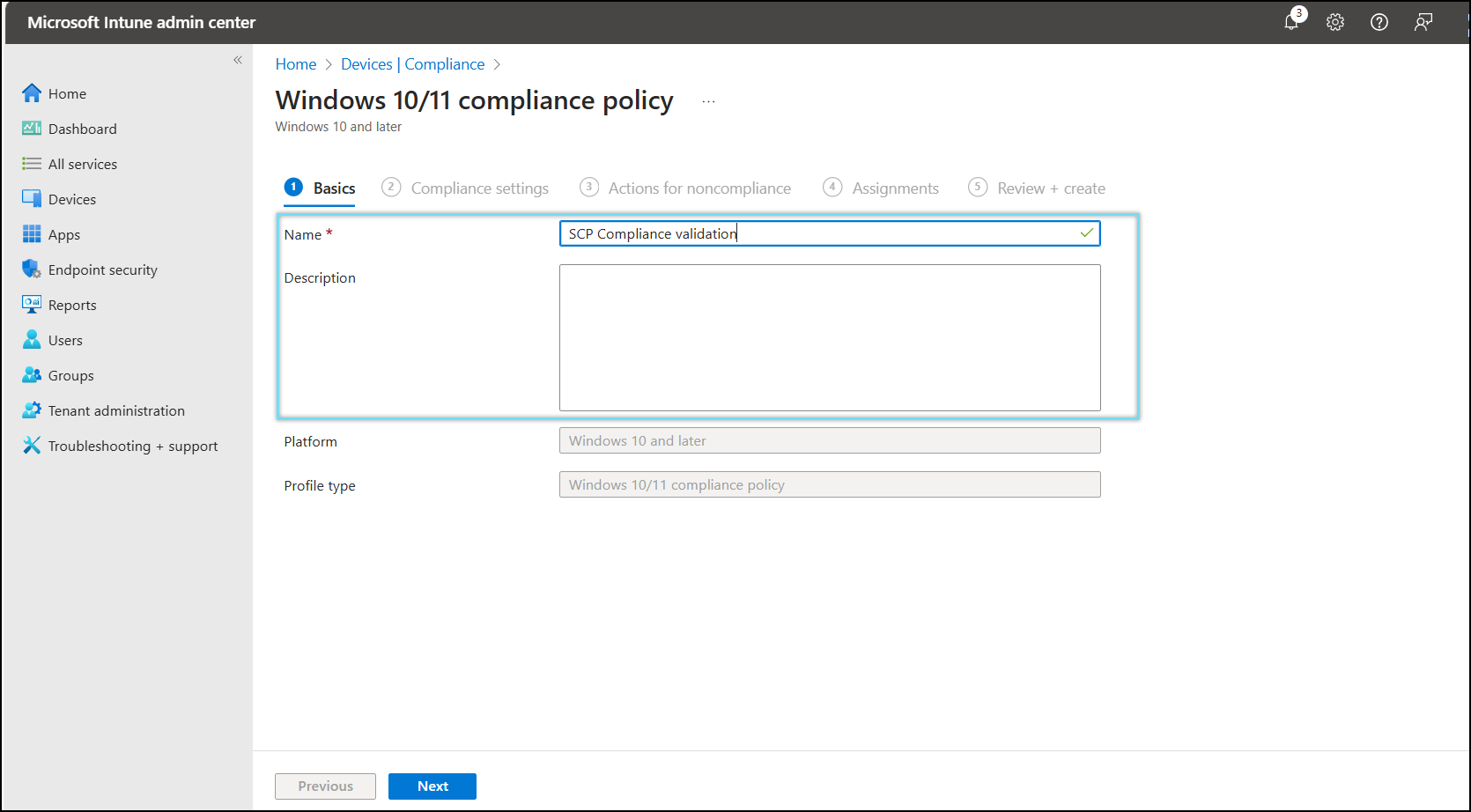
- Click Next.
- In Compliance settings, select Required as Custom Compliance and select the script created in step 7.

- Upload the validation.json script.

- Click Next.
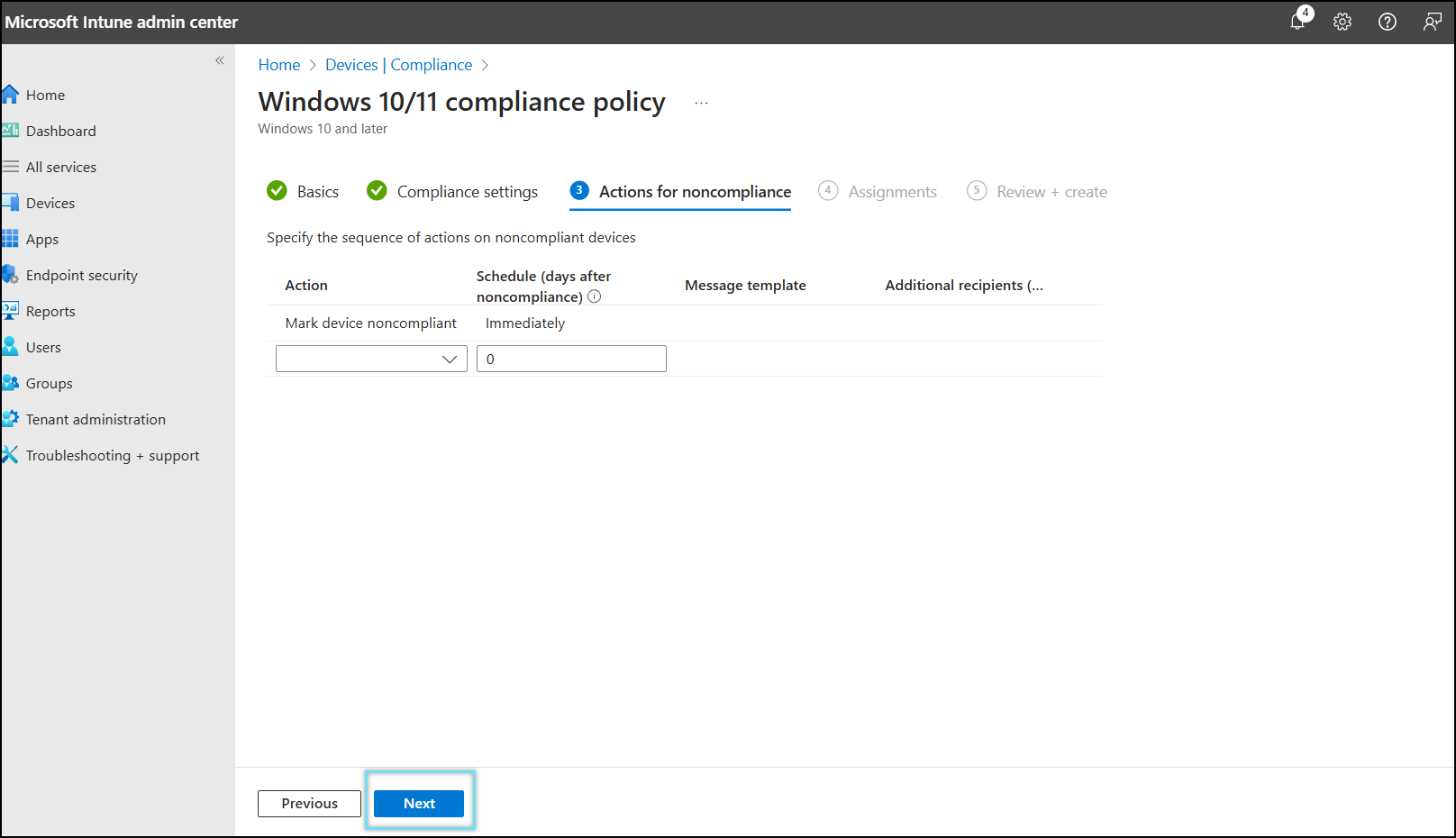
- Select All users and All devices In the Assignments tab.

- Click Next.
- Review the Windows 10/11 compliance policy and click Create.
SC compliance status is found under Devices > Windows devices > select the device > Device compliance.

NOTE:
- To uninstall SC, see Uninstall SC from Managed Devices using Intune
- To upgrade SC, see Upgrade SC on Managed Devices using Intune
- To disenroll a device, see Disenrollment of Managed Devices in Intune