Check out Interactive Visual Stories to gain hands-on experience with the SSE product features. Click here.

Skyhigh Security

Troubleshoot Common Issues

This guide helps you quickly identify and fix common Skyhigh Private Access issues across connectors, clients, policies, and SAML authentication, so you can restore secure access to private applications with minimal disruption.

Connector Issues
Challenge  Workaround

Secure App Connector Page – Status: Unreachable


image-2025-12-6_18-14-56.png

Cause: TCP and UDP connectors’ tunnels are down. 

Workaround:

  1. Log in to Connector CLI.
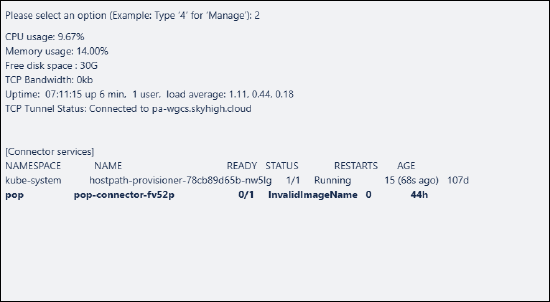
  2. Check Tunnel status using option #2.
  3. Run Diagnostics using option #5 and verify that all checks pass.
Secure App Connector Page – Status: Critical

Cause: TCP or UDP connection among PA connectors is down.

Workaround.

  1. Log in to Connector CLI.
  2. Check Tunnel status using option #2.
  3. Run Diagnostics using option #5 and verify that all checks pass.

CLI Tunnel Status

Symptom:

  • Not connected to Gateway (TCP)
  • Wiredguard Tunnel not connected (UDP)

image-2025-12-6_18-12-38.png

Cause.  The connection between the Connector and the PA-Gateway (PoP) is broken.

Workaround.

  1. Confirm that the Prerequisites are followed and the On-prem firewall allows traffic to the PA-Gateway.
  • TCP port 443
  • UDP port 443
  1. Log in to the respective pods using option #4 > e- > t/u, then type Bash and press Enter.
  2. For TCP Connector: 
    1. Run the commandcurl -v -k https://pa-wgcs.skyhigh.cloud:443
    2. Verify output: 200 Connection Established.
    3. Check Logs: 
      • tail -f /skyhigh/mount/logs/openvpn_client-1.log
      • tail -f /skyhigh/mount/logs/postRegistration.log
    4. Look for errors.
  3. For UDP Connector: 
    1. Run the command and verify if the connection is established (200 Connection Established.) curl -v -k https://conect.pa-wgcs.skyhigh.cloud:443 
    2. Run the command and verify if the status is open:  nmap -Pn -sU -p 443 traffic.pa-gateway.skyhigh.cloud
    3. Execute restart-scs.
    4. Check logs: 
      • tail -f /skyhigh/mount/logs/debug.log
      • tail -f /skyhigh/mount/logs/postRegistration.log
Pods in InvalidImageName status


image-2025-12-6_18-36-17.png

Cause: Intermittent network connectivity prevents pod initialization.

Workaround: 

  1. Log in to Connector CLI, choose option #4.
  2. Wait ~30 seconds for pods to initialize.
     
Pods in Unknown status

Description: MountVolume.Setup fails for volume or secret cache timeout.


image-2025-11-30_16-34-28.png
Cause: VM host is down for >24 hours, causing ECR token expiry.

Workaround:  Deploy the connector on a fresh VM host.
Installation Failures (IAM not reachable, wrong DNS, invalid proxy, duplicate configs) Cause: Connector deployment script received invalid data or failed to reach required endpoints.

Workaround: 
  • For ESX: Redeploy connector on the same host after resolving issues.
  • For others: Redeploy the connector on a fresh host.
Client Issues
Challenge  Workaround
SCP Window Shows PA Status: Not Connected 
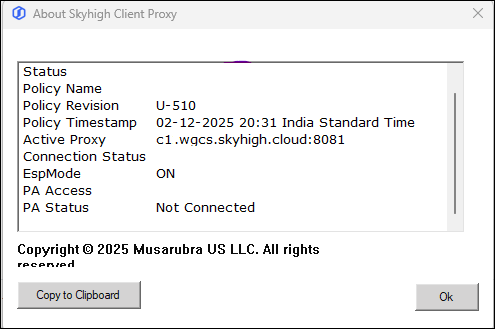
2026-01-07_14-14-15.png


Cause: The client cannot establish outbound connectivity on port 8080 or 443.

Workaround: 

  1. Open a command prompt on the client.
  2. Test connectivity to the proxy:
    • telnet cxxxxxx.wgcs.skyhigh.cloud 8080
    • telnet cxxxxxx.wgcs.skyhigh.cloud 443
  3. Use the configured secure channel port.
  4. Verify that the firewall allows outbound traffic on the required ports.
This Site Can’t Be Reached When Accessing a Private Application

2026-01-07_14-16-46.png

Cause: The application is not configured as a Private Application in the SSE UI.

Workaround: 

  1. Add the application under SSE UI > Private Access > Private Applications.
  2. Confirm that the SCP policy revision on the client matches the SSE UI revision.
  3. Open About Skyhigh Client Proxy and verify that PA status shows Connected.
  4. Access the PA dashboard and confirm that the application appears:
    • https://api.wgcs.skyhigh.cloud/ztna/dashboard
  5. For on-prem applications, verify that the PA host resolves to a 100.64.x.x IP address.
  6. If the PA uses an IP address, ensure SCP bypass rules are not applied.
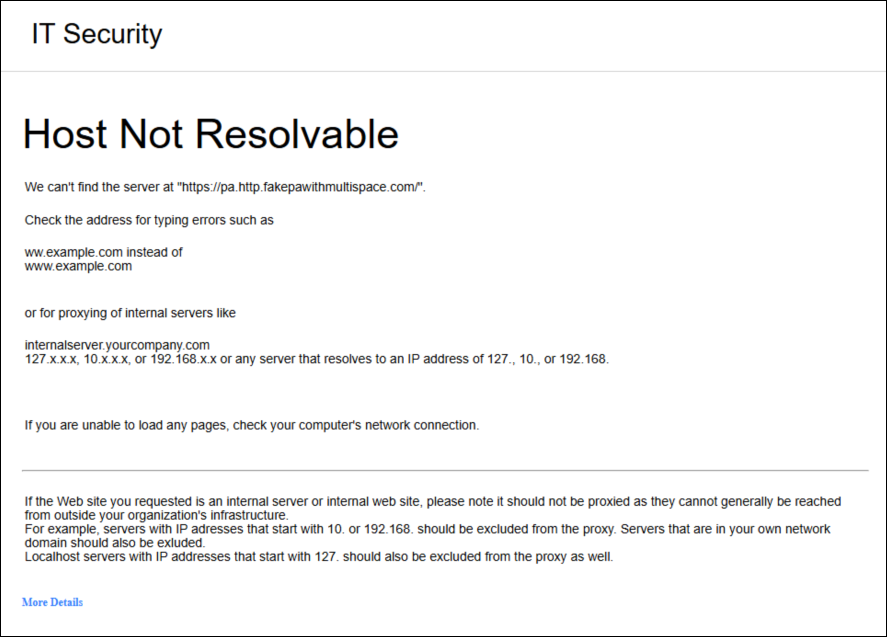
Host Not Resolvable 

2026-01-07_14-18-22.png

Cause: The Private Application is not configured or DNS resolution fails.

Workaround: 

  1. Verify that the connector can resolve the Private Application hostname.
  2. Run DNS checks from the connector using CLI options.
  3. If the application uses HTTP, try accessing it as HTTPS from the browser.
No Route Found to This Private Application

2026-01-07_14-19-44.png

Cause: 

  • The connector associated with the application host is down, or
  • The connector cannot update routes to the PoP, or
  • The PA Gateway cannot update routes to the Global PoP.

Workaround: 

  1. Verify connector health on the Secure App Connector page.
  2. Log in to the TCP connector pod using CLI option #4, type Bash, and press Enter, and ensure the health update reaches the UP state.
  3. Log in to the SSE UI and check the Analytics > Private Access > Private Applications page.
  4. Log in to the gateway and review:
    • /var/log/debug.log
    • /var/log/error.log
  5. Confirm that the Global Gateway PoP is reachable.
Cannot Access Private Application – Not Resolvable
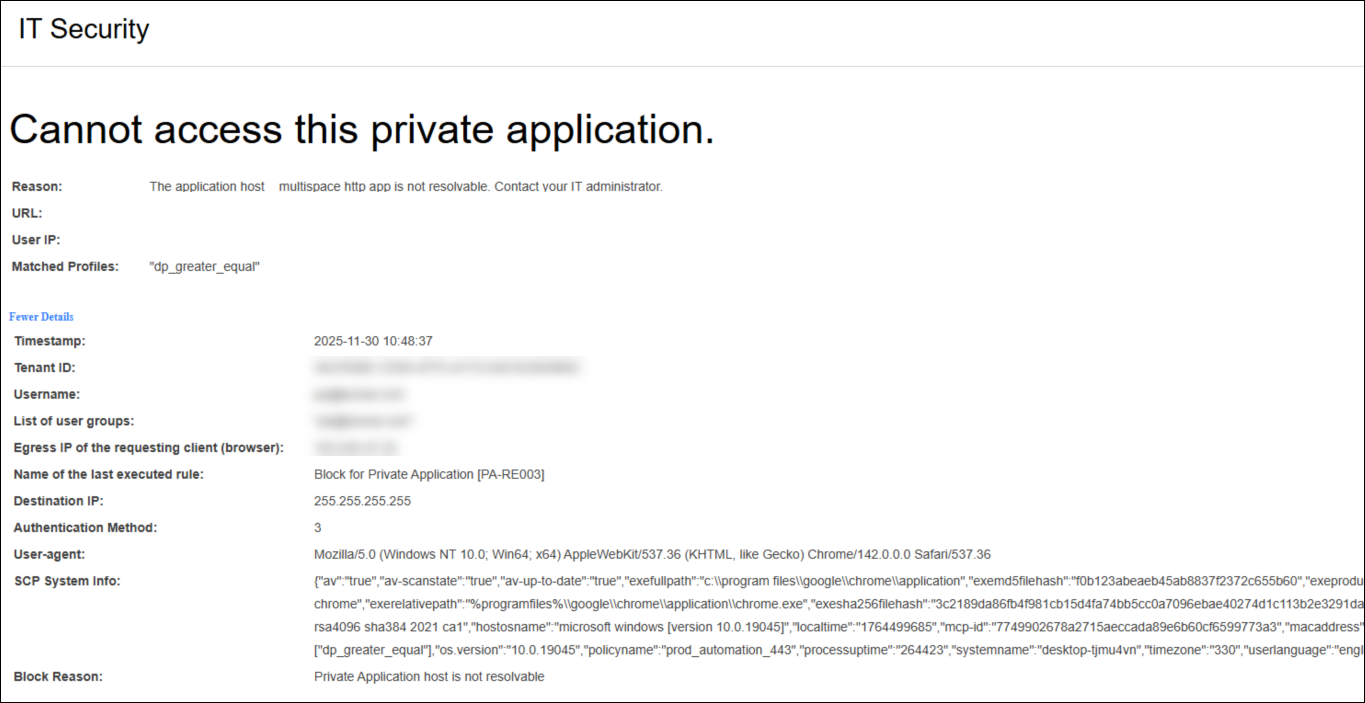
2026-01-07_14-21-00.png

Cause: The connector cannot resolve the Private Application.

Workaround: 

  1. Verify DNS resolution from the connector.
  2. Test access from the connector: curl --noproxy "*" -vk https://<appname>.com
  3. For SSH-based applications: curl --noproxy "*" -vk https://appname.com:22 or attempt SSH access from the connector.

Cannot Access Private Application – Not Reachable

Failure Description: The connector resolves the host to an IP address, but the IP or port is unreachable.

Cause: The connector cannot reach the Private Application endpoint.

Workaround: 

  1. Verify DNS resolution from the connector.
  2. Test application access from the connector:: curl --noproxy "*" -vk https://<appname>.com
  3. For SSH-based applications: curl --noproxy "*" -vk https://appname.com:22 or attempt SSH access from the connector or "nc -vz paapp.com 22" for non web apps.
Bad Gateway – Proxy Did Not Receive a Valid Response in Time


2026-01-07_14-29-35.png

2026-01-07_14-29-49.png

Cause: 

  • The connector cannot reach the Private Application, or
  • The PA uses SmartMatch or multiport configuration and not all connectors can reach the application.

Workaround: 

  1. Test application reachability from the connector: curl --noproxy "*" -vk https://<appname>.com
  2. If SmartMatch or multiport is configured, ensure all connectors can access the application.
  3. Check OpenVPN tunnel stability on the connector.
  4. Review Grafana logs or /skyhigh/mount/logs/openvpn_client-1.log for frequent tunnel resets.
  5. Verify whether the PA Gateway PoP is under maintenance or down.
  6. If traffic fails between the client-facing PoP and the PA Gateway PoP, check PoP health with Ops.

SSL Handshake Error – Handshake with Remote Server Failed

Failure Description: Connection refused from the ZTNA gateway or backend service.

Cause: The Cloud PoP may be down or unstable.


Workaround: 

  1. Check PoP status with the Operations team.
  2. On the Connector CLI, run option #5 and collect diagnostic output.
  3. On the Connector CLI, run option #6 and collect logs.

Cannot Connect – Proxy Could Not Connect to Destination in Time

Failure Description: Connection reset or cannot connect to the destination server.

Cause: 

  • Connector tunnel resets or is down, or
  • SWG is down, or
  • The Private Application is not reachable.

Workaround:

  1. Check whether a corporate firewall drops TCP sessions or tunnels.
  2. Verify that the connector can resolve and reach the Private Application host.
SCP Client Tunnel Status: Failed to Connect (Phase 1 / Phase 2)
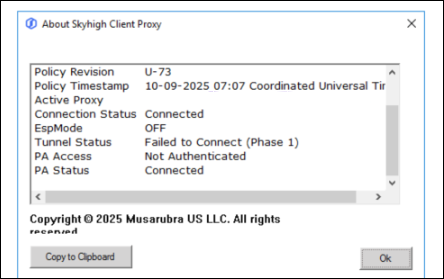
2026-01-07_14-33-45.png

 
Cause: The client cannot reach the tunnel endpoint to establish a connection.

Workaround: 
  1. Verify connectivity to:
    • connect.gateway.skyhigh.cloud
    • traffic.gateway.skyhigh.cloud
  2. Allow outbound traffic on:
    • TCP 443
    • UDP 443
  3. Confirm that the corporate firewall does not block tunnel traffic.
Policy Issues 
Challenge  Workaround
Private Applications Not Shown on PA Dashboard (Web Policy Tree Empty)

The PA dashboard (https://api.wgcs.skyhigh.cloud/ztna/dashboard) is empty and does not list any Private Applications.
Cause: The Private Access section under Policy > Web Policy tree is empty.

Workaround: 
  • Contact the Policy team.
  • Verify that Private Access policies exist and are correctly configured in the Web Policy Tree.
Private Applications Not Shown on PA Dashboard (SCP Proxy Bypass)

The PA dashboard (https://api.wgcs.skyhigh.cloud/ztna/dashboard) is empty and does not list any Private Applications.

Cause:
The following domains or IP ranges are bypassed in the SCP Proxy Bypass policy:

  • api.wgcs.skyhigh.cloud
  • 100.64.0.0
  • *.skyhigh.cloud

Workaround: 

  1. Log in to the SSE UI.
  2. Open the SCP Proxy Bypass configuration.
  3. Remove the listed domains and IP ranges from the bypass list.
  4. Save the policy and apply changes.

Redirection to SAML Authentication Not Working

Accessing https://api.wgcs.skyhigh.cloud/ztna/dashboard does not redirect to the SAML IdP login page. Instead, it redirects to the clientless access page requesting an email address.

Cause: 

One or more of the following conditions exist:

  1. SCP is not running or is unresponsive.
  2. The client machine time is out of sync.
  3. api.wgcs.skyhigh.cloud or 100.64.x.x is configured in the SCP bypass list.
  4. SCP cannot connect to SWG on port 8080.
  5. DNS resolution on the SCP client fails and does not resolve to the nearest SWG (161.69.x.x).
  6. A proxy or firewall removes SCP headers.


Workaround: 

  1. Log in to the SSE tenant.
  2. Verify that the SCP policy does not include api.wgcs.skyhigh.cloud in the bypass list.
  3. Check whether the proxy or firewall blocks port 8080.
  4. Ping c1234.wgcs.skyhigh.cloud and confirm it resolves to a 161.69.x.x IP address.
  5. Review proxy and firewall configurations for header stripping.
  6. Restart the SCP client.
  7. Open About Skyhigh Client Proxy and confirm the SCP policy name and revision are correct.
TLS Handshake Error 500 for RDP or SSH-Based Private Applications

The Analytics PA Usage page shows a TLS handshake error 500 for RDP or SSH-based Private Applications.
Cause: The connector cannot reach the Private Application.

Workaround: 
  1. From a Windows machine, run a telnet test to the RDP application port and verify connectivity.
  2. From the SCP machine, runcurl -vk rdpapp:<port> and check the response from SWG.
  3. Review healthupdate.log for RDP or SSH-related errors.
  4. Verify that valid routes exist for the RDP/SSH application in the ZTNA Gateway.
  5. Check for error codes associated with missing or incorrect routes.
SAML Login Issues
Challenge  Workaround
SAML Login Failure Cause: SSE UI has misconfigured SAML attributes.

Workaround: 
  1. Open the SSE UI.
  2. Review all configured SAML attributes.
  3. Correct any mismatched or missing attributes.
Clientless Access Loops on Email Domain Page After SAML Authentication Cause: The SAML User ID attribute does not match the email entered on the email domain page.

Workaround: 
  1. Open the browser Developer Tools.
  2. Capture the SAML response.
  3. Decode the response using a hex decoder.
  4. Identify the attribute used as the User ID.
  5. Ensure the User ID attribute matches the email value entered on the email domain page.
Clientless Access Loops on Email Domain Page and Does Not Redirect to IdP Login Cause: The domain configured in Web Gateway SAML settings does not match the entered email domain.

Workaround: 
  1. Verify the domain configured in Web Gateway SAML settings.
  2. Use the same domain when configuring SAML in the tenant UI.
  3. Enter an email address that matches the configured domain.
    • Example: If the domain is sky.com, use abcd@sky.com.
PA Dashboard Shows No Private Applications

The PA dashboard (https://api.wgcs.skyhigh.cloud/ztna/dashboard) does not list any Private Applications.
Cause:
  • No clientless applications are configured, or
  • The User ID attribute in the SAML response does not match the configured value.
Workaround: 
  1. Open the browser Developer Tools.
  2. Capture and decode the SAML response.
  3. Identify the User ID attribute in the SAML response.
  4. Ensure the same attribute is configured in the tenant UI SAML settings.
  • Was this article helpful?