

Add Applications

Add applications to an application group to logically organize multiple applications as a single entity. Intended users can access these applications based on rules defined in private access policies.
Private Access addresses key use cases traditionally handled by VPNs through Network Level Access, which securely enables broad network connectivity based on zero trust principles. This approach allows seamless migration from legacy VPN solutions.
Enhance private access by enabling users to assign multiple application groups (tags) to a single private application and edit these associations as needed. This provides greater flexibility and control in managing private applications, simplifies policy configuration through tag-based rules, and streamlines updates by allowing dynamic modification of application group assignments.
Note: Any PA app where the server initiates the connection is not supported. Eg: active FTP, where the client waits for the server to initiate the connection. This will not work as a PA app.
Add an Application
- Go to Settings > Infrastructure > Private Access Configuration.

- Select the Applications tab.

- Under the Action menu, click Add Application.
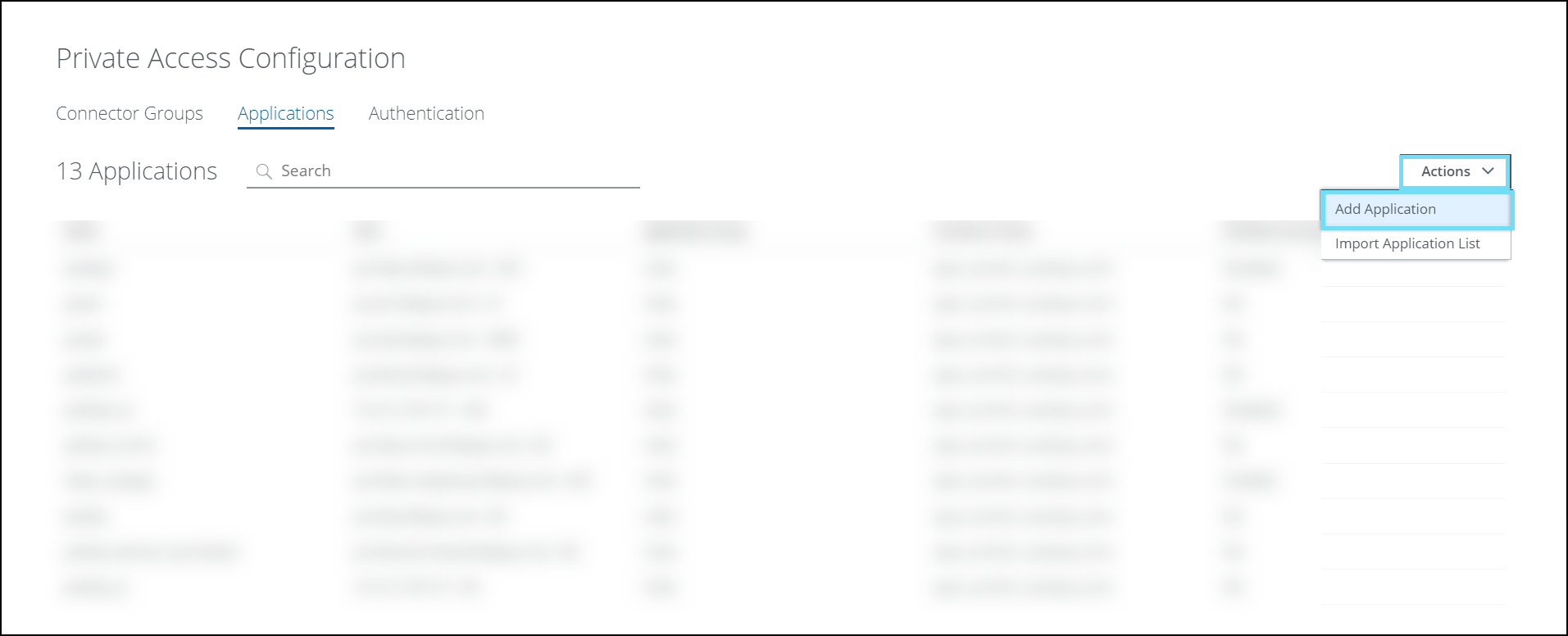
A new Add Application window appears.

- Complete the following fields:
- Name. Enter the name of the application.
- Protocol. Select the protocol used to access an application. Supported protocols are HTTP, HTTPS, SSH, RDP over UDP, UDP, and Others (TCP). Make sure to consider prerequisites before selecting a protocol.
Note: To enable RDP over UDP settings, see the SCP configuration

NOTES:
- The Port field automatically populates the default port used by the selected protocol. If you do not want to use the default port numbers, you can change them. Make sure to specify the port when you select TCP, UDP, and Others ( TCP and UDP).
- If your private application uses SMB protocol (port 445), then make sure to enable the Include traffic originating from OS Core option in the SCP configuration policy (.opg) file before exporting it. For more details, see Traffic Redirection
- Type. Select the type used to access an application. Supported types are Application or Network or Network and Application.

| Application | Network | Network and Application |
|---|---|---|
| Allowed entries: Domain/Host/IP/Domain Wildcard | Allowed entries: Valid Subnet value | Allowed entries: Domain/Host/IP/Domain Wildcard |
|
|
|
Notes to be remembered:
- In the Application and Network and Application types, users can configure SmartMatch by defining
*test.comas a Private Application (PA). As a result, the system intercepts subdomains such asdrive.test.comas PA, while it does not interceptdrivetest.comas PA. - In Network type, if the user tries to access the private application using FQDN, it would be treated as Internet traffic. The user should be accessing the application via IP
- Data pertaining to any private application that has been accessed is visible on the Discovered Private Application page.
- If a network subnet is added as a PA app, all the apps within that subnet must be reachable from all the connectors in the assigned connector group
- The Network Level Access feature is exclusively accessible with the connector V2 version. To determine which connector is currently active, you can perform the following check: Go to Settings > Secure App Connector

- Port. Displays the port used to connect an application for the selected protocol. We support standard ports from 1 - 65535. You can specify the ports in multiple different ways:
- Range (80-90)
- Individual (80, 90, 8080)
- Both (100-300, 80, 90)
Note: You cannot add multiple applications with the same protocol, host, and port. Make sure to specify the port when you select UDP.
- Assign Applications Groups. Assign an existing application group, or create a new one and assign it to an application. Click Select to assign an existing group or select New to add an application group. To configure this in a Private Access policy, see Configure Private Access Rule.
- Assign Connector Groups. Assign an existing connector group or create a connector group and assign it to an application. Click Select to assign an existing group or select New to add a connector group.

NOTE: Any PA app that is public should be reachable directly from the connector, without any proxy in between the connector and the PA app
- Single Connector Traffic Routing - In a scenario wherein multiple connectors are there within a connector group, this UI toggle when enabled would ensure the traffic to go via a single connector (would be selected randomly) ensuring consistent traffic routing for a user session. This route would have a TTL of 3mins and extended by another 60 minutes on subsequent requests with a valid route.
NOTE: If the Single Connector Traffic Routing toggle is enabled and the connector is unreachable for the application, switching the route or path to a different connector will result in approximately 3 minutes of downtime.

- Users with Visiblity in Launchpad - Select the user to access an application. The selected users and user groups can view this application in their Private Application launchpad.
NOTE: By default, all the applications will be visible to user lists and user groups.
- User Names/List -
- Manually enter users - Enter the user name manually. Multiple users should be separated by a comma.

- Use a List - Select the User List from the available user lists.
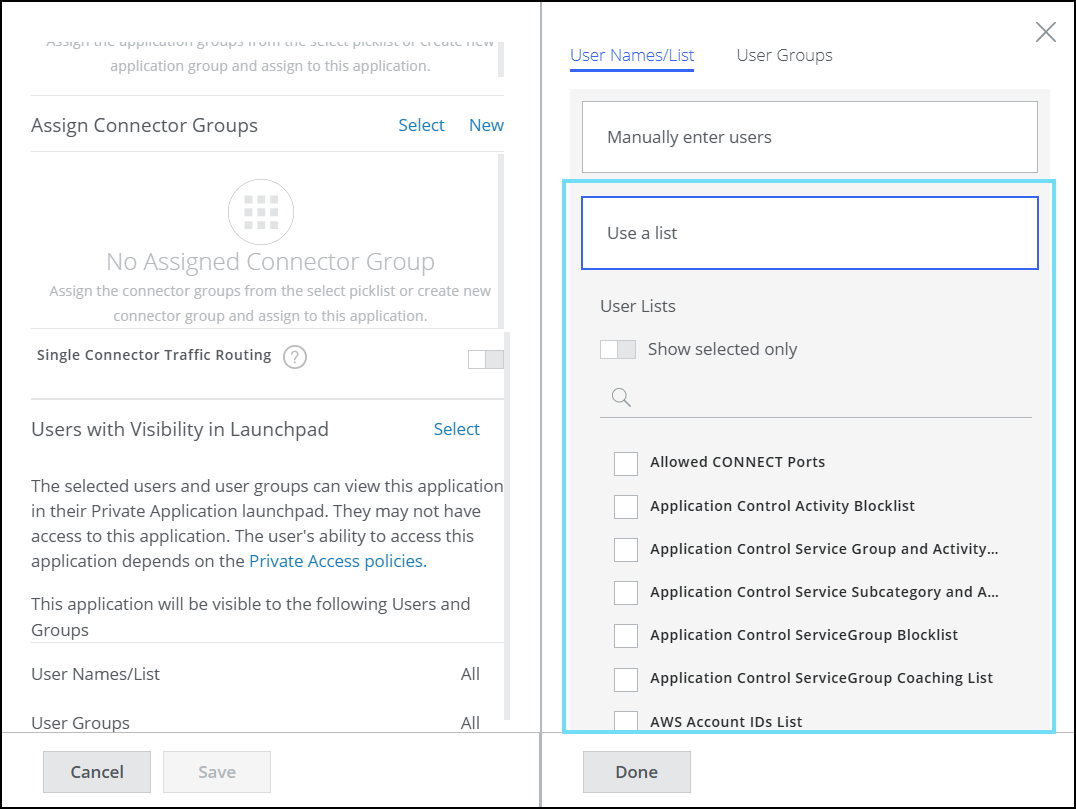
Toggle Show selected only to view the list of selected user lists.
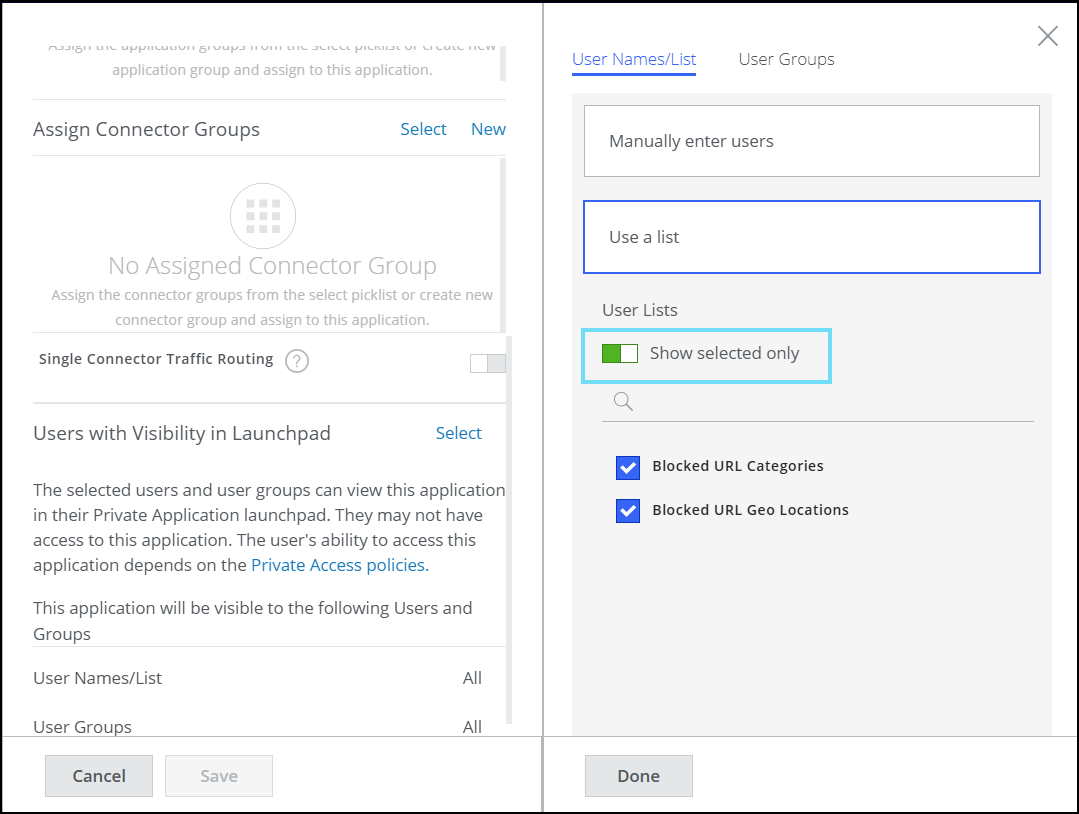
- Manually enter users - Enter the user name manually. Multiple users should be separated by a comma.
- User Groups - Select a User Group from the list of available user groups. To create a new list/group, see List Catalog.

Toggle Show selected only to view the list of selected user groups.

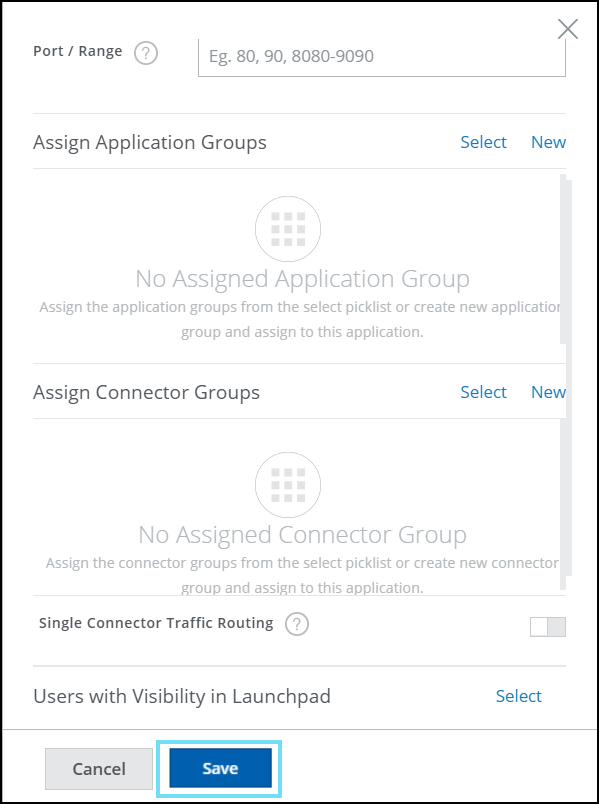
- Click Save.
Add Applications by Importing a List
You can import a list of private applications rather than adding them individually. Your list of applications must be in a CSV format. You can create the CSV file using any text editor. The imported items are added to the Applications page.
Before you begin
The .csv file must meet these requirements.
- The file contains one list item per row.
- The columns are separated by one of these characters: whitespace, tab, comma, semicolon, or a custom character.
- The characters in the file are encoded with UTF-8 encoding.
- Go to Settings > Infrastructure > Private Access Configuration.

- Select the Applications tab.

- Under the Action menu, click Import Application list.
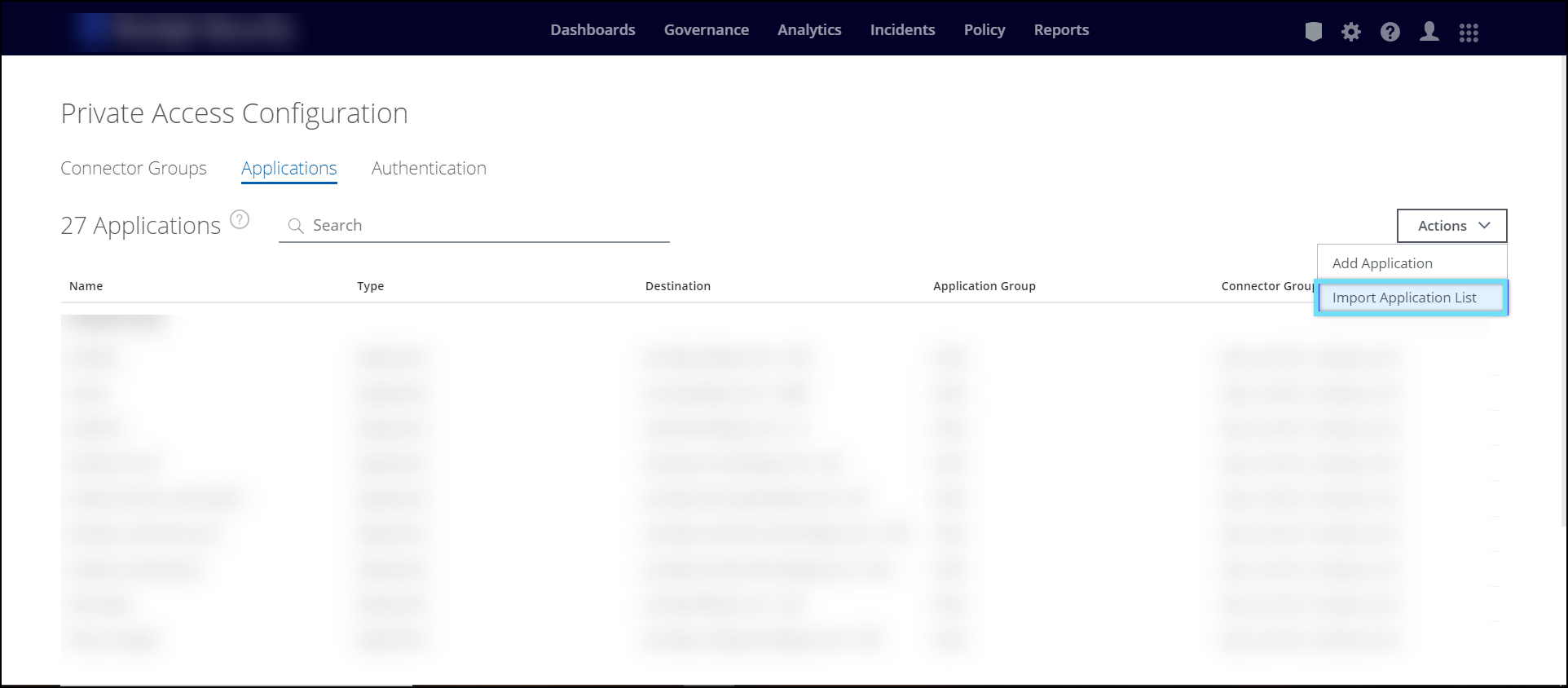
- In your file browser, select a .csv file to import, then click Open.
When you configure the import settings for the .csv file, you can:
- Specify whether there is a header row.
- Exclude rows from the import that start with the character you specify.
- Avoid duplicate entries.
- Specify whether leading and trailing whitespace is trimmed from the values in the columns.
- Use the backslash character to include special characters. For example, you can use this option when the list items include the column separator. In this example, the column separator is a comma.
NOTE: Ensure the CSV or XLS file has all required columns to avoid errors during import. Download the sample CSV format from here.
The following table shows the headers that are mandatory in the CSV file:

| Header name | Description |
|---|---|
| Application Name | Name of the private application. |
| Protocol | Protocol used to connect an application. Supported protocols are HTTP, HTTPS, SSH, RDP, and Others (TCP). Note: Only port 443 port and HTTPS protocol is supported for Clientless Access. |
| Type | Types used to access an application. Supported types are: application, network, nw_and_application. |
| Host | Enter the fully qualified domain name (FQDN) of the application. Do not use smart match or IP address for the hostname. |
| Subnet | Subnet is a network or set of IPs. |
| Port | The port used to connect an application for the selected protocol. You can enter the port number you want to use. |
| Application Group | The application group name (mandatory) |
| Connector Group | The connector group name (optional). Displays Yet to be assigned on the Applications page when you import with this field empty. You can assign it to a connector group later. |
| Clientless Access | Enter True to enable Clientless Access and False to disable Clientless Access |
- In the Import CSV dialog box, select the column separator, then configure these options:
- Select First line contains column headers if the .csv file includes a header row.
- Select Ignore lines beginning with character to specify a character to exclude the specified rows from the import.
- Select Use "\" for escaping special characters when you want the import to interpret the character following the backslash as a character instead of as a column separator.
- Select Trim leading and trailing whitespace to trim leading and trailing whitespace from the values in the columns.
- Select Avoid duplicate enteries to exclude duplicate application entries.
- Review all the import settings and click Import.

- Applications will be added to the application dashboard.

- Once the import of the applications are completed. To make any changes to the application settings, click on the application that you want to edit.
For more details on the following fields like protocol, type, and many more see Add an Application section.

- Once the changes are made, click Save and Publish the changes.

- Once access to resources based on applications and networks is granted to users, you can navigate to the discovered private application page to gain further insights and information on how applications are being utilized within your private network.
- These insights can be utilized to monitor the applications accessed by users, refine applications through updating application entries or importing lists, and control user access.
Note: To configure PA policy rules for UDP applications, see Configure Private Access Policy Rules for UDP Based Application
Application Group Management
Efficiently manage Launchpad visibility for private applications by leveraging the bulk edit feature, designed to simplify access management for complex environments. This functionality enables administrators to select multiple private applications simultaneously and apply uniform visibility updates in a single operation.
Bulk editing eliminates the manual configuration required for individual application updates, reducing administrative overhead and minimizing the risk of entry errors. This streamlined approach ensures consistent policy enforcement, providing organizations with enhanced flexibility and control when managing user and group access across the enterprise.
Bulk Edit Launchpad Visibility
User and user group visibility for multiple private applications can be managed simultaneously using the bulk edit feature. This eliminates the need to manually configure visibility for each individual application.
-
Go to Settings > Private Access > Private Applications.

-
Select the checkboxes next to the applications you want to modify.
A real-time counter displays at the top center of the page confirming the total number of selected applications.

-
Click the Actions drop-down menu and select Edit launchpad visibility.

-
In the side panel, choose one of the following apply methods:
-
Add Viewers. Assigns new users or user groups while preserving all existing visibility settings for the selected applications.
-
Remove Viewers. Revokes visibility for specific users or user groups if they are currently assigned to the applications.
-
Replace Viewers. Completely overwrites and replaces all existing user and group visibility assignments with a new selection.

-
Click Select under your chosen method to open the user configuration interface.

-
Enter or search for the usernames, emails, or user groups you want to apply to the policy rule, then click Done. The panel displays a localized summary count of your selections.

-
Review the Impact Preview section at the bottom of the panel to see exactly how your changes affect access permissions across the selected applications.

-
Click Save to commit your configurations.
-
Click Publish to deploy your visibility changes to user Launchpads.

