

Send Debug Logs via SMC Application
You can now export debug logs directly to Skyhigh Support from your Android or iOS device to help troubleshoot application loading issues.
Send Logs from Android Device
You can access and send debug logs from Android using either of the following methods:
-
Send Logs When Application Fails to Load from Android Device
Send Logs from Android Settings
-
Log in to the Skyhigh Client mobile application on your android device.
-
Tap the Settings icon.

-
Select Export Logs.

-
Tap Send to Skyhigh Support.

-
Select Gmail.

The logs are attached in the email draft automatically. -
Tap the Send icon.

The SMC debug logs are sent to the Support team.
Send Logs When Application Fails to Load from Android Device
- Tap the menu icon in the top-right corner of the page when the application fails to load.

-
Select Send to Skyhigh Support.

-
Select Gmail.

The logs are attached in the email draft automatically. -
Tap Send.
The SMC debug logs are sent to the Support team.
Send Logs from iOS Device
Send debug logs directly to Skyhigh Support from your iOS device to help resolve application loading issues.
NOTE: Configure an active email account in the native iOS Mail app before exporting logs. This feature requires an active mail profile.
You can access and send email logs on iOS device using either of the following methods:
Send Logs from iOS Settings
- Log in to the Skyhigh Client mobile application on your iOS device.
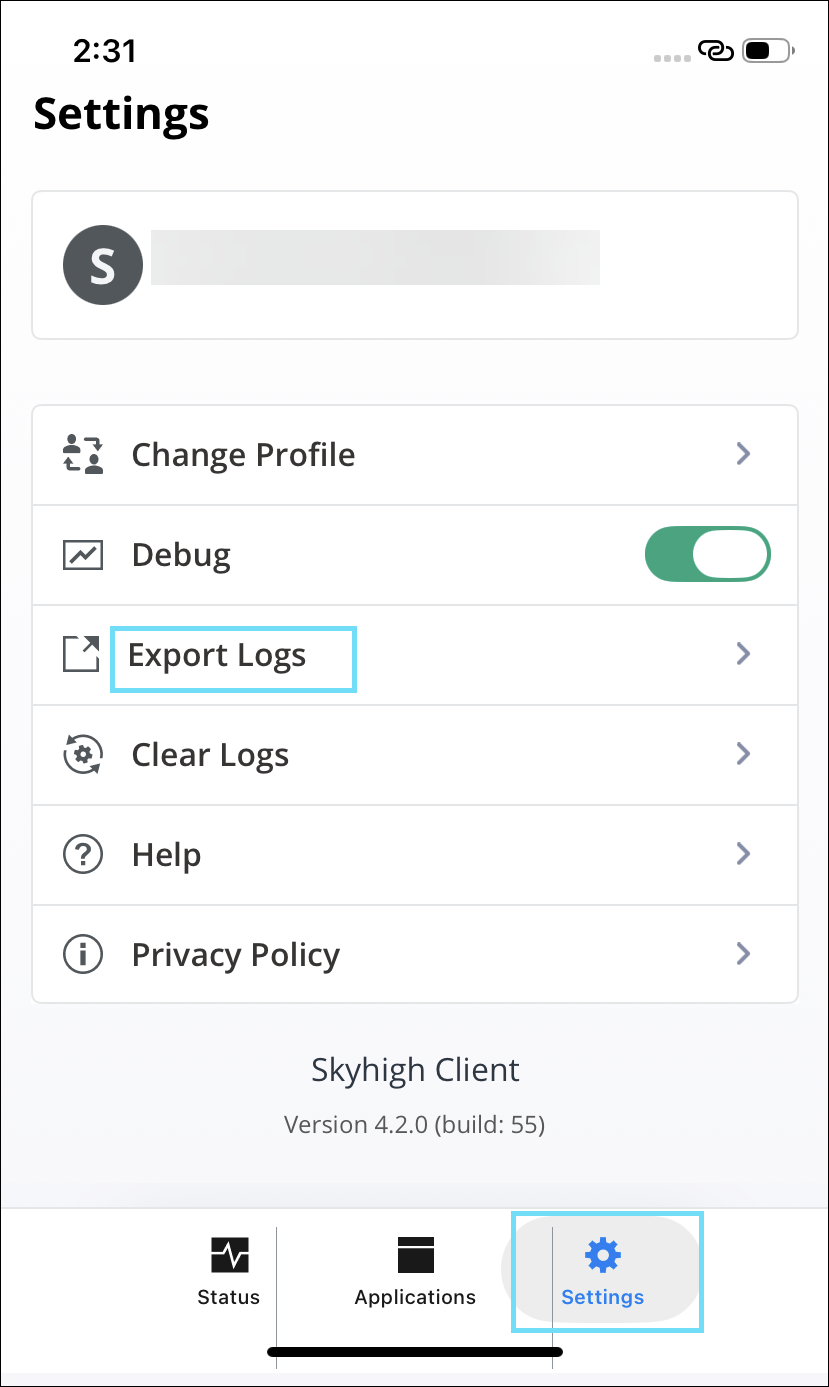
- Tap Settings.

-
Tap Export Logs:
-
Tap Send to Skyhigh Support.

The logs are attached to the email automatically. -
Tap Send.

The SMC debug logs are sent to the Support team.
Send Logs When Application Fails to Load from iOS Device
-
Tap the redirect icon at the top-right corner of the SMC app page when the application fails to load.

-
Tap Send to Skyhigh Support.

The logs are attached in the email draft automatically. -
Tap Send.

The SMC debug logs are sent to the Support team.