

Install the Skyhigh Mobile Client App on Android Device
This topic guides users through the installation and troubleshooting of the Skyhigh Mobile Client app for Android, as well as the device-specific limitations.
Install Skyhigh Mobile Client App
NOTE: Ensure that the Skyhigh Mobile Client app is available on your device. For details on supported operating systems and app versions, see Supported OS Platforms for Skyhigh Mobile Client App.
- Download and install Skyhigh Mobile Client from the Google Play Store.
- Read the disclaimer and select the I agree to use data as specified in terms and conditions checkbox.
- Tap Proceed.
- Tap Select Account.
- Select an email account to use with the Skyhigh Mobile Client app and tap OK.
- Perform the following steps when the .p12 file is not pushed using MDM:
- Tap Browse & Upload to upload the .p12 file you have received from the Administrator.

NOTE: If the .p12 certificate is deployed via MDM, no manual upload is required. Select the certificate on the Choose certificate screen and continue with step d.
- Search and select the .p12 file.
- Select the required certificate.
- Tap Select.

- Tap Browse & Upload to upload the .p12 file you have received from the Administrator.
Once the certificate file is processed, the Skyhigh Mobile Client app connects to the VPN successfully, and the app opens.

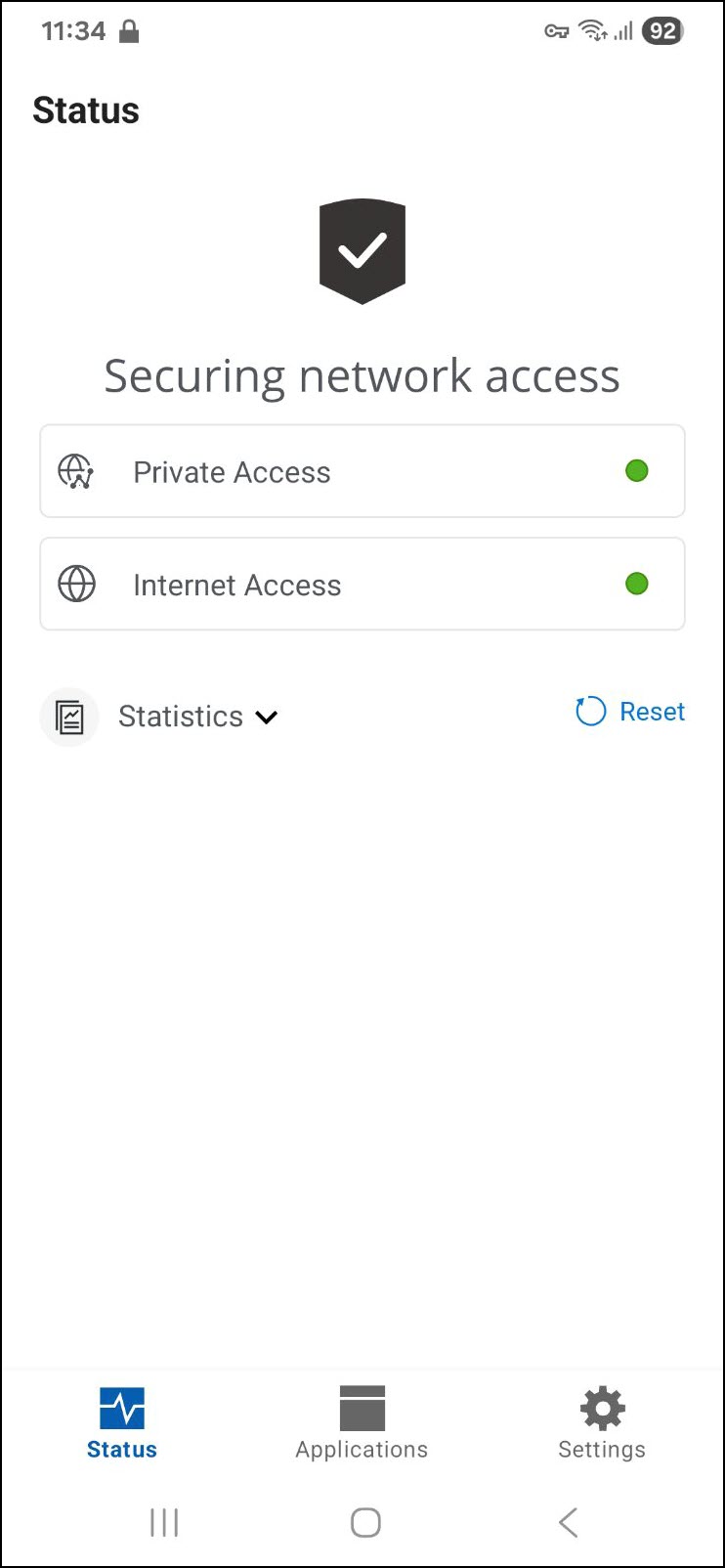
- Tap the Applications tab.
- Perform the following steps when minimal.OPG file is not pushed using MDM:
- Tap BROWSE AND UPLOAD to upload the.OPG file you have received from the Administrator.
NOTE: If the minimal.OPG file is deployed through MDM, you don’t need to upload it manually. The app automatically redirects to the SAML authentication page if enabled; otherwise, the Private Applications screen appears.

- Search and select the .OPG file.
- Tap BROWSE AND UPLOAD to upload the.OPG file you have received from the Administrator.
After successful authentication, you can use the Skyhigh Mobile Client or enter the full URL of the application in an external browser to access the private application.

NOTE: Ensure you have appropriate client applications to access applications using the RDP and SSH protocols.
View Skyhigh Mobile Client App
- Settings - Tap this tab to view the following:
- Change Profile - You can use this option to change the user profile.
- Debug logs - You can enable this option to collect logs up to 30 MB. These logs are useful for troubleshooting issues. Log deletion is based on the oldest file to the newest. When allocated disk space fills up, it deletes the oldest logs up to 15 MB.
- Export logs - You can use this option to export(download logs) and share the log information with the Skyhigh Support team.
- Clear Logs - You can use this option to clear logs.
- Help - You can use this option to contact Skyhigh Security Support if you need any assistance.
- Privacy Policy - You can use this option to check Skyhigh Security private policy details.
- Disconnect VPN - You can use this option to disconnect the VPN.
- App Reset - You can use this option to clear all the app settings and reinstall the app.
- Logout Private Access – You can use this option to log out of the application. After logging out, you will be redirected to the login page.
- Key icon - This icon is displayed on the status bar to indicate that the Skyhigh Mobile Client is running.
- Status - Tap this tab to check the status of the private applications. The green color indicates that the Private Applications and Internet Applications are accessible through the Skyhigh Mobile Client.
- Applications - Tap this tab to view the Private Applications available.

Troubleshoot Skyhigh Mobile Client App
Restart the device and relaunch the app. In case any error persists, perform the following actions and share the logs with the Skyhigh Support team.
- Go to Settings and enable Debug Logs.
- Try to reproduce the error/behavior.
- Go to Settings and tap Export Logs, and share the log information.
- Disable Debug Logs.
Android Device Limitations
The HTTPS inspection is supported for private applications only if:
- The customer CA is installed and trusted by the Android device.
- The customer CA is accepted by the installed applications.