

Verify Device ID for Skyhigh Mobile Client on iOS
You must configure Microsoft Entra ID to retrieve the device ID of Skyhigh Mobile Client (iOS) devices. When end users install the Skyhigh Mobile Client on Intune-managed iOS devices and access internal applications through Skyhigh SSE, Microsoft Entra ID (Azure AD) does not receive the device ID. As a result, Entra ID treats these devices as unmanaged and blocks access to applications that require managed device compliance.
Strong authentication requires Entra ID to validate both user credentials and device identity. When traffic flows through the Skyhigh SSE VPN tunnel, the device ID is not forwarded by default, which prevents compliance evaluation.
To restore device-based access control, configure Microsoft Entra ID to recognize and evaluate device ID information for compliant iOS devices using the Skyhigh Mobile Client.
Before You Begin
Make sure you have the following prerequisites in place:
- A valid user certificate from Active Directory for VPN authentication.
- Administrator access to the Microsoft Entra ID portal and Skyhigh Security tenant.
- Target iOS devices must be enrolled in Microsoft Intune and marked as supervised.
Configure Microsoft Entra ID
Follow the configuration steps below to retrieve the device ID for Skyhigh Mobile Client (iOS) devices:
- Create an Enterprise Application in Microsoft Entra ID
- Import Federation Metadata XML into Skyhigh SSE UI
- Verify Device Supervision
- Create a VPN Profile for Skyhigh Mobile Client
- Assign the VPN Profile
- Deploy the Skyhigh Mobile Client Application
- Authenticate using SAML
- Verify Device ID
Create an Enterprise Application in Microsoft Entra ID
- Sign in to the Microsoft Intune/Entra ID portal.
- Click Enterprise apps.
- Click New application.
- Click Create your own application.
- Enter a name for the application.
- Select Integrate any other application you don’t find in the gallery (Non-gallery).
- Click Create.

- In the Manage section, select Single sign-on.
- Click SAML to open the SAML-based Sign-on page.
- Click Edit (
 ) in the Basic SAML Configuration section and configure the following values:
- Identifier (Entity ID).
https://saml.wgcs.skyhigh.cloud - Reply URL (Assertion Consumer Service URL).
https://saml.wgcs.skyhigh.cloud/saml
- Identifier (Entity ID).
- Click Save.
- Click Download to download the Federation Metadata XML file.

Import Federation Metadata XML into Skyhigh SSE UI
- Sign in to the Skyhigh SSE UI.
- Go to Infrastructure > Web Gateway Setup > Setup SAML.
- Click New SAML.
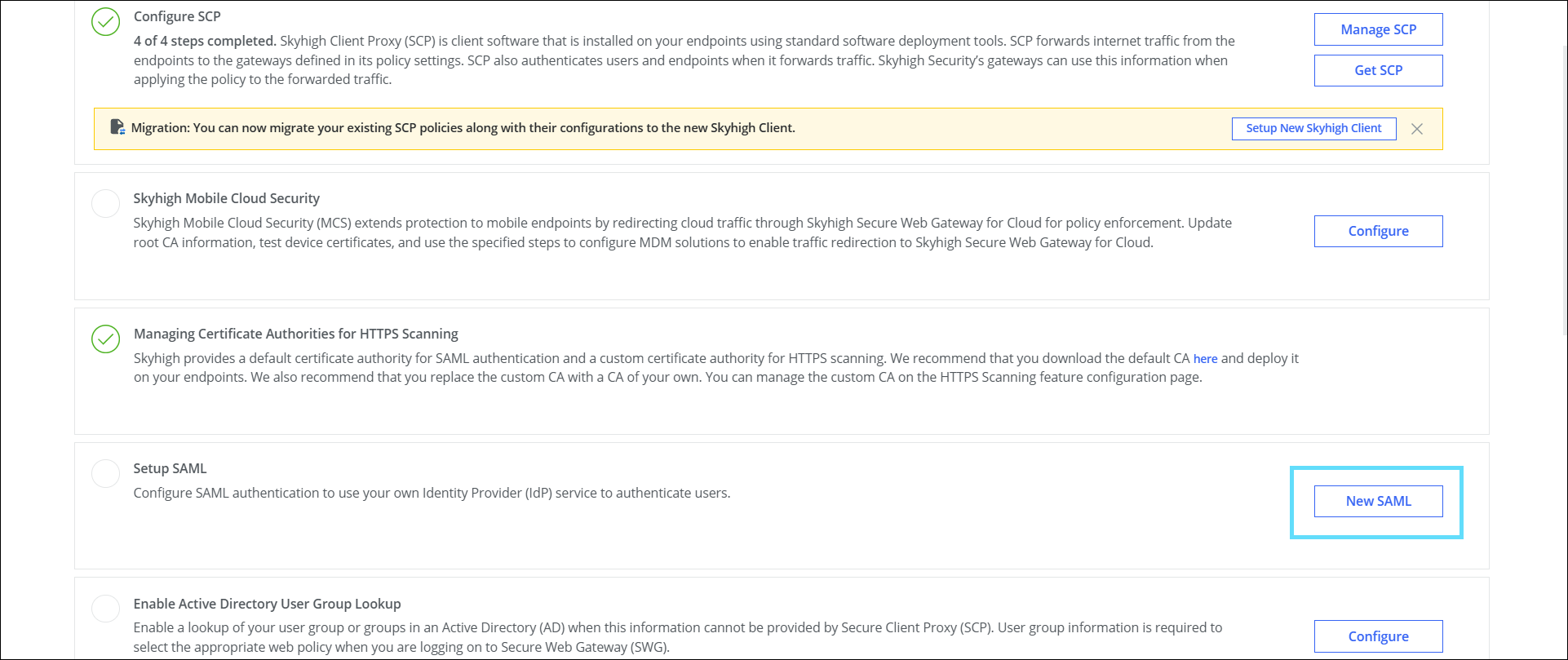_1.png?revision=1&size=bestfit&width=854&height=360)
-
Go to Actions > Import IdP Metadata.
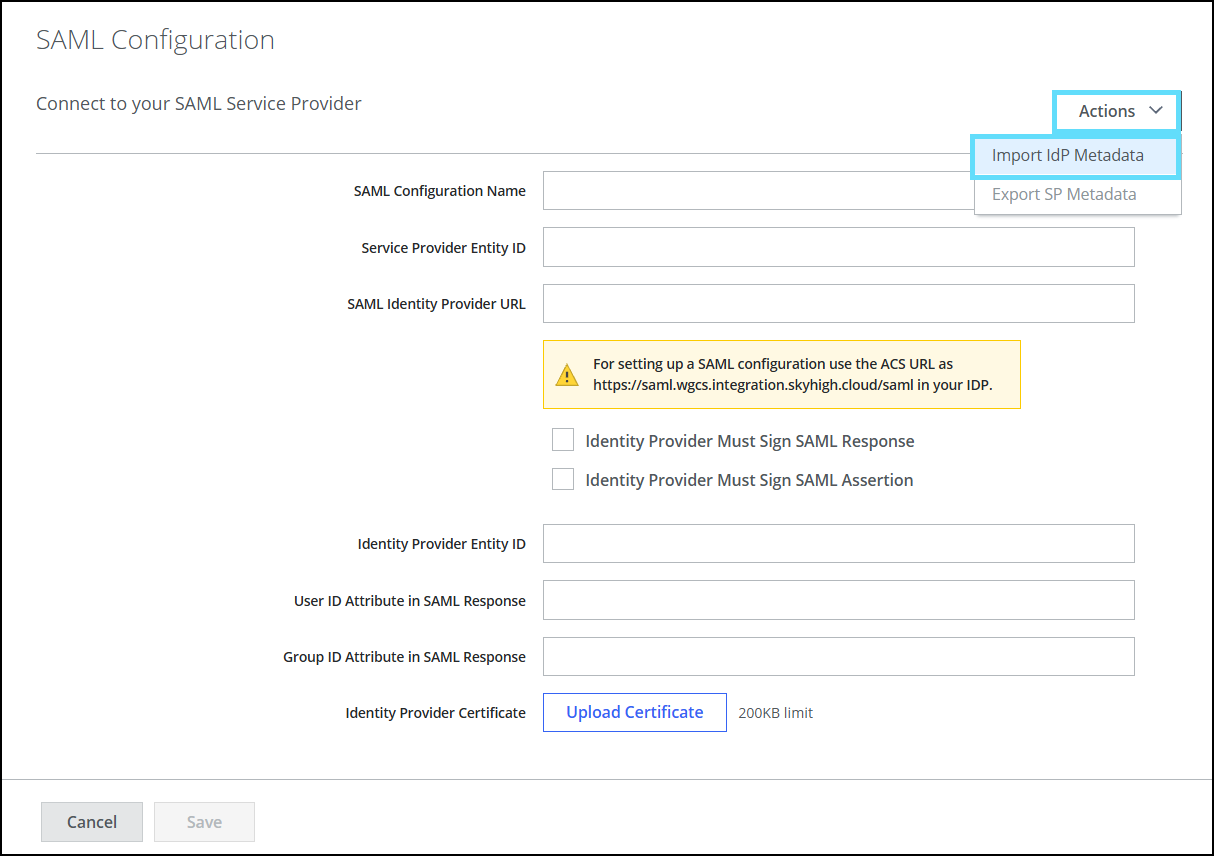_1.png?revision=1&size=bestfit&width=629&height=444)
- Upload the metadata file downloaded from the Entra ID portal (Step 12).
- Enter the required fields that remain blank after uploading the metadata file from the Entra ID portal.
- Click Save.
Verify Device Supervision
Ensure that the target iOS devices are enrolled in Microsoft Intune and marked as supervised to enable Device ID forwarding.
Create a VPN Profile for Skyhigh Mobile Client
NOTE: Ensure you have the certificate downloaded from the AD server before proceeding.
Create a VPN profile in your Microsoft Intune with the following values:
- Connection type. IKEv2
- VPN server address.
mobile.skyhigh.cloud - Always-on VPN. Enable
- Remote identifier.
mobile.skyhigh.cloud - Local identifier. Subject Common Name
- Client Authentication type. User authentication
- Authentication method. Certificates (use the certificate issued from AD)
- TLS minimum version. 1.1
- TLS maximum version. 1.2


Assign the VPN Profile
Assign the VPN profile to the required users or groups in Microsoft Intune.
Deploy the Skyhigh Mobile Client Application
Deploy the Skyhigh Mobile Client app to the same users or groups.
Authenticate using SAML
- On the device, open the Skyhigh Mobile Client.
- Use SAML authentication to sign in through Entra ID.
Verify Device ID
- Sign in to the Microsoft Intune portal.
- Go to Sign-in logs.
- On the Activity Details: Sign-ins panel, under the Device info tab, verify that:
- Device ID displays the unique identifier of the device.
- Managed displays Yes.

You can now restore device-based access control because Microsoft Entra ID accepts device ID information from compliant iOS devices using the Skyhigh Mobile Client.