

Enable Minimal OPG Access for PA Applications on Android Devices
This topic explains how to configure the Skyhigh Client to enable the minimal OPG access for PA Applications option using an app configuration policy on managed devices.
Add App Configuration to Enable Minimal OPG Access Option
You can create an app configuration policy for the Skyhigh Client app in Microsoft Intune to enable the minimal OPG access for PA Applications option on managed devices.
To create an app configuration policy:
- In Microsoft Intune, go to Apps > Manage apps > Configuration.

- Click Create > Managed devices.

The Create app configuration policy window opens.
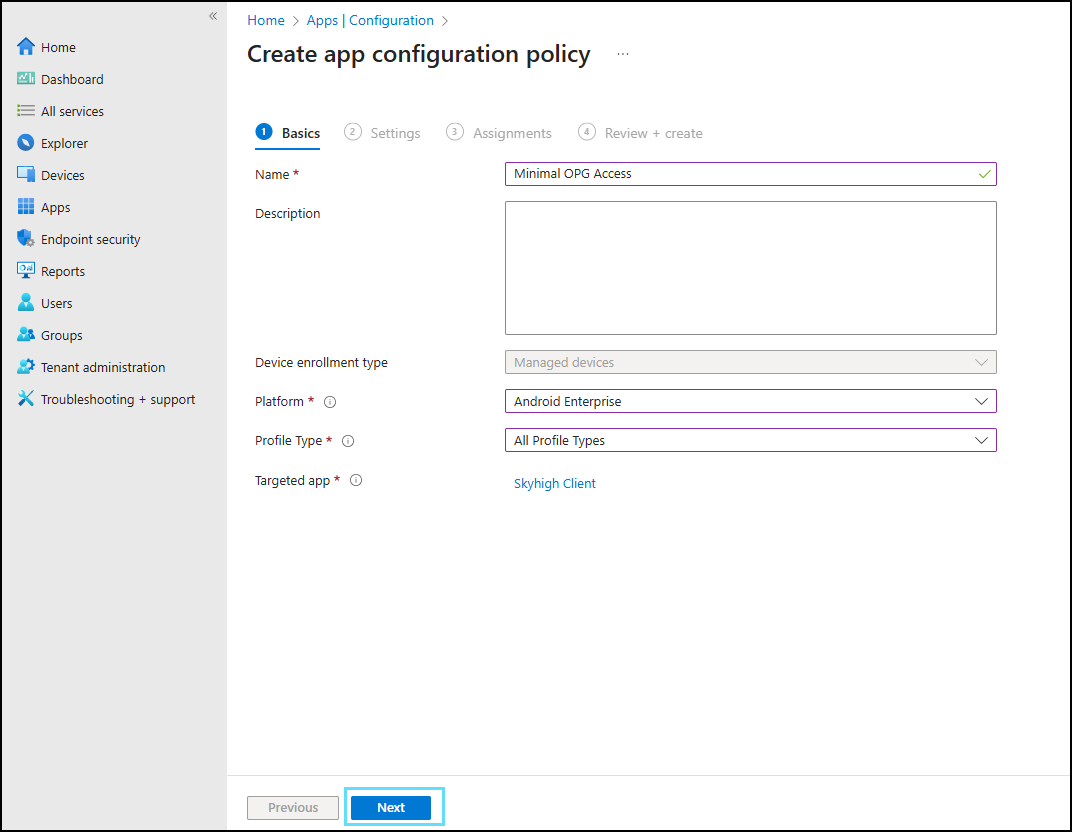
- Under the Basics tab, configure the following settings:
- Enter the Name.
- Select Android Enterprise as the Platform.
- Select All Profile Types as the Profile Type.

- Select the previously added app as the Targeted app and click OK.

- Click Next.
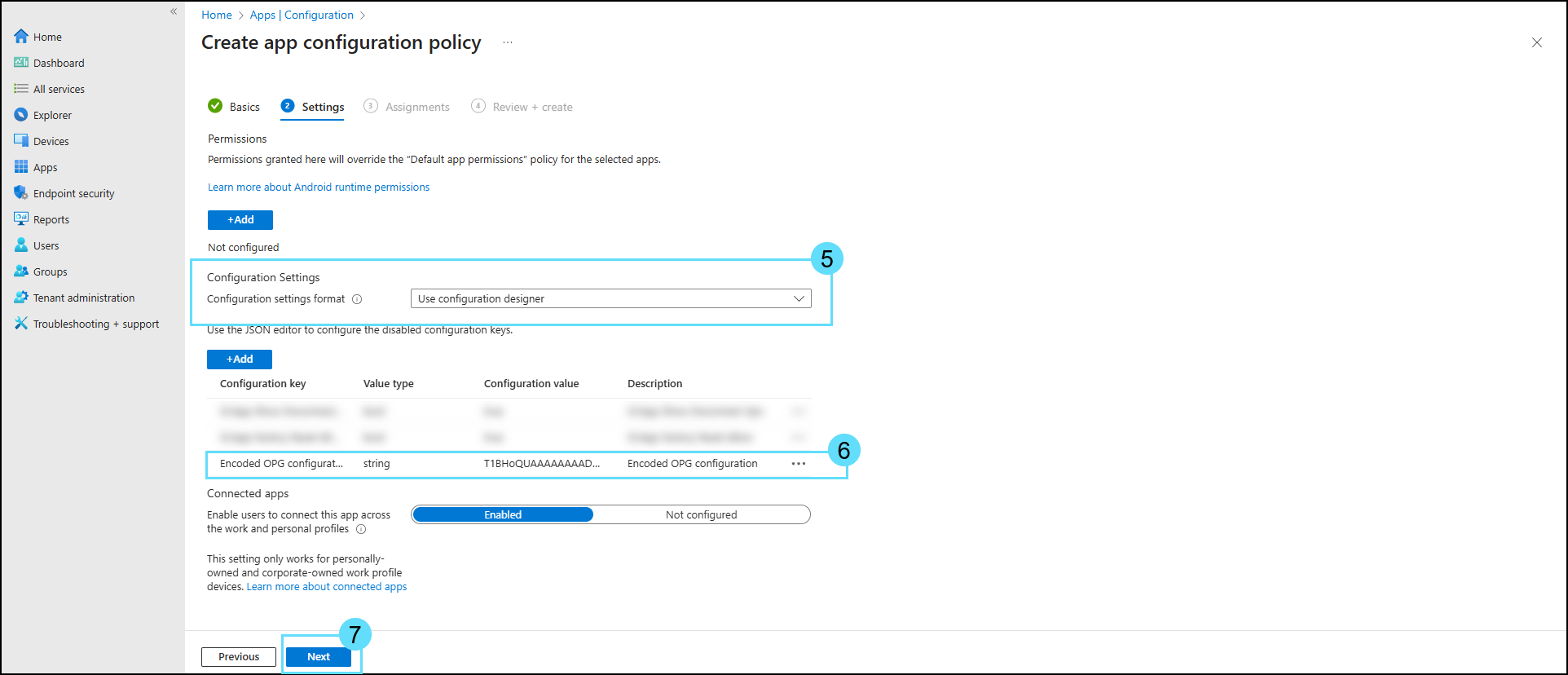
- Under the Settings tab, from the Configuration settings format dropdown, select Use configuration designer.
- Enter the Configuration key as Encoded OPG configuration, set the Value type to string, and enter the Configuration Value as opgEncodedString to enable the minimal OPG file upload option.
- Click Next.
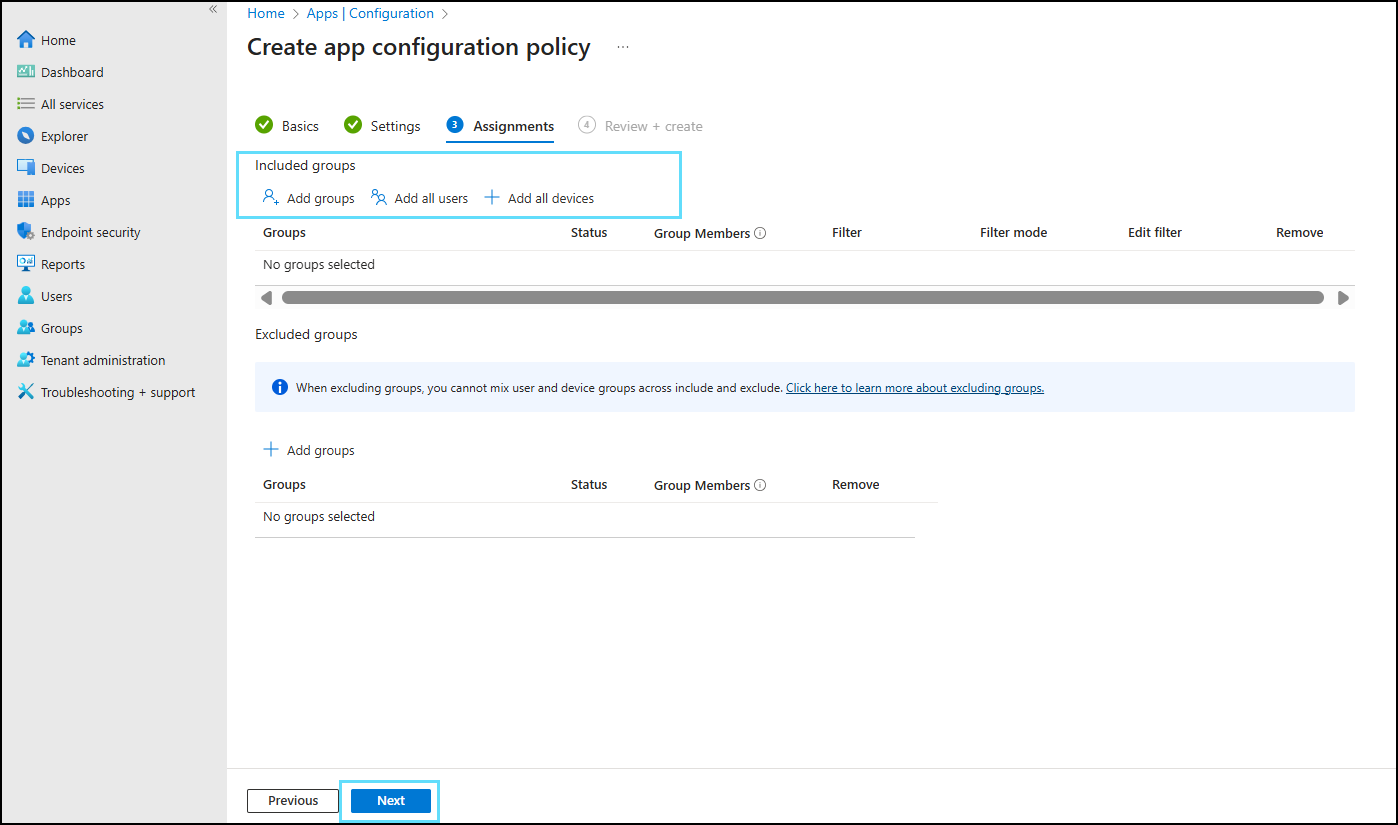
- Under the Assignments tab, add the required group in the Included groups setting and click Next.
- Under the Review + create tab, review the minimal OPG access configuration and click Create.
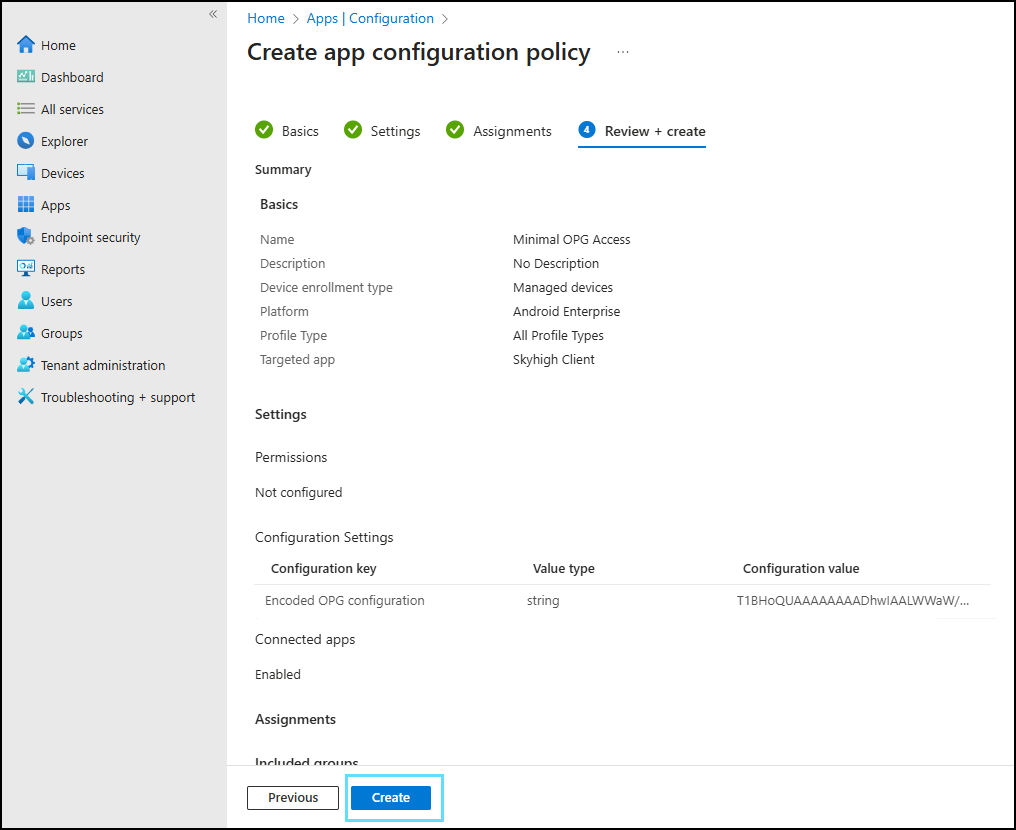
The Skyhigh Client app is now added to Intune and configured with the minimal OPG access option enabled for managed devices.