

Create PKCS, Root CA, and Customer Root Certificate using Intune (MDM)
To configure the Skyhigh Mobile Client app using MDM, you must deploy the required certificates and policies from Intune to the managed device. Follow the steps below to create and push the certificates:
- Create Root CA Certificate as a Trusted Certificate
- Create PKCS Certificate
- Create Customer Root CA Certificate
Create Root CA Certificate as a Trusted Certificate
NOTE: Generate and download the Root CA certificate from Active Directory, and then upload the certificate (generated from AD or the XEA tool) to the customer tenant in the SSE Web.
To upload the Root CA to Inune and deploy it to the device:
- In Microsoft Intune, go to Device > Android > Configuration.
- Under Policies, click Create and select New Policy.

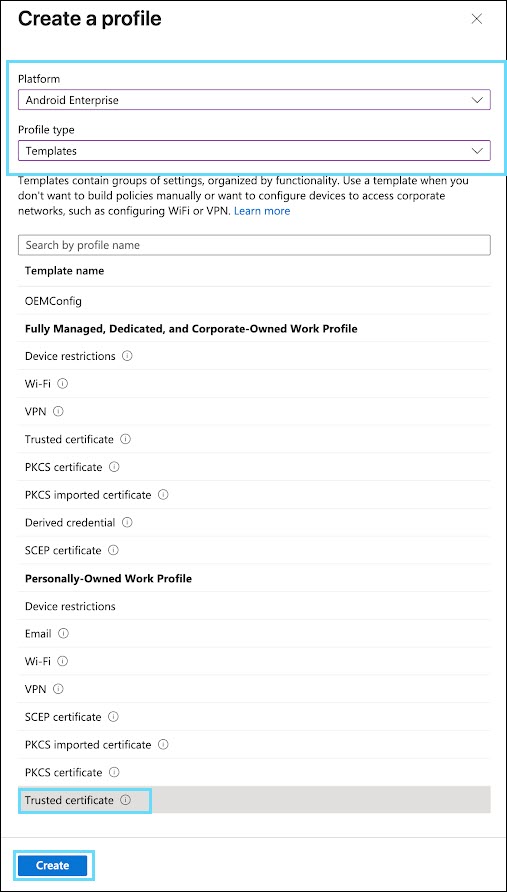
Create a profile panel opens. - On the Create a profile panel, configure the following:
- Platform. Select Android Enterprise as the platform for the profile.
- Profile type. Select Templates as the profile type.
and select Trusted certificate as the Template name. - Click Create.
Trusted certificate window opens.
- Under the Basics tab, enter a Name and Description, and click Next.

- Under the Configuration settings tab, select the root CA downloaded from AD in the certificate file section and click Next.

- Under the Assignments tab, add the required device or user group in the Included groups setting and click Next.

- Under the Review + create tab, review the trusted certificate summary and click Create.

A trusted certificate is created and automatically pushed to the assigned device.
Create PKCS Certificate
To create a PKCS certificate and deploy it to the device:
- In Microsoft Intune, go to Device > Android > Configuration.
- Under Policies, click Create and select New Policy.
Create a profile panel opens.
- On the Create a profile panel, configure the following:
- Platform. Select Android Enterprise as the platform for the profile.
- Profile type. Select Templates as the profile type.
and select the PKCS certificate as the Template name. - Click Create.

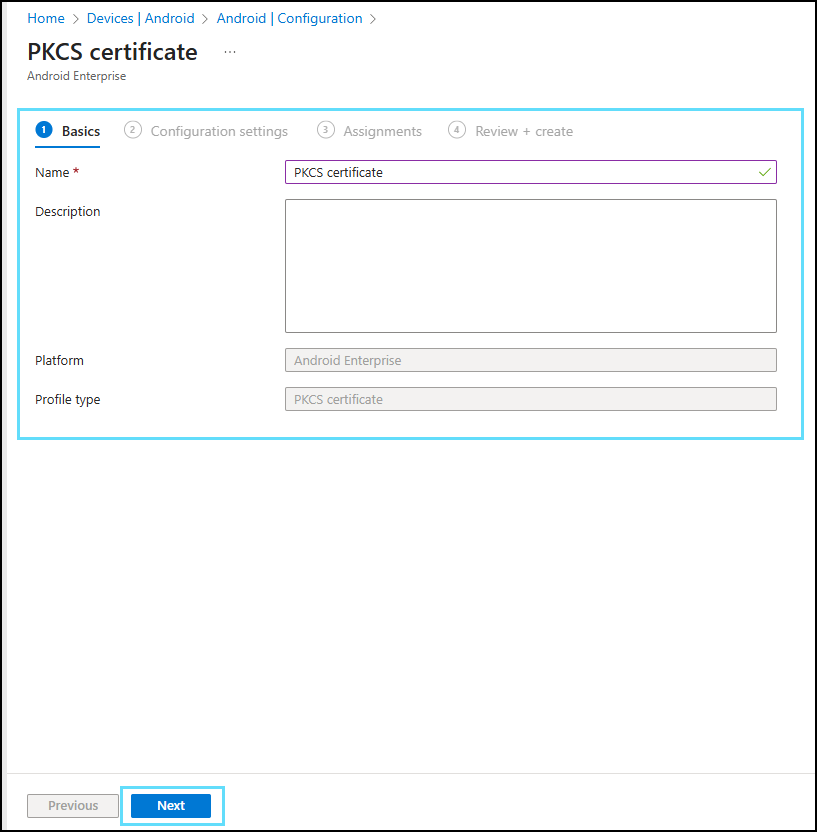
PKCS certificate window opens.
- Under the Basics tab, enter a Name and Description, and click Next.
.png?revision=1&size=bestfit&width=540&height=550)
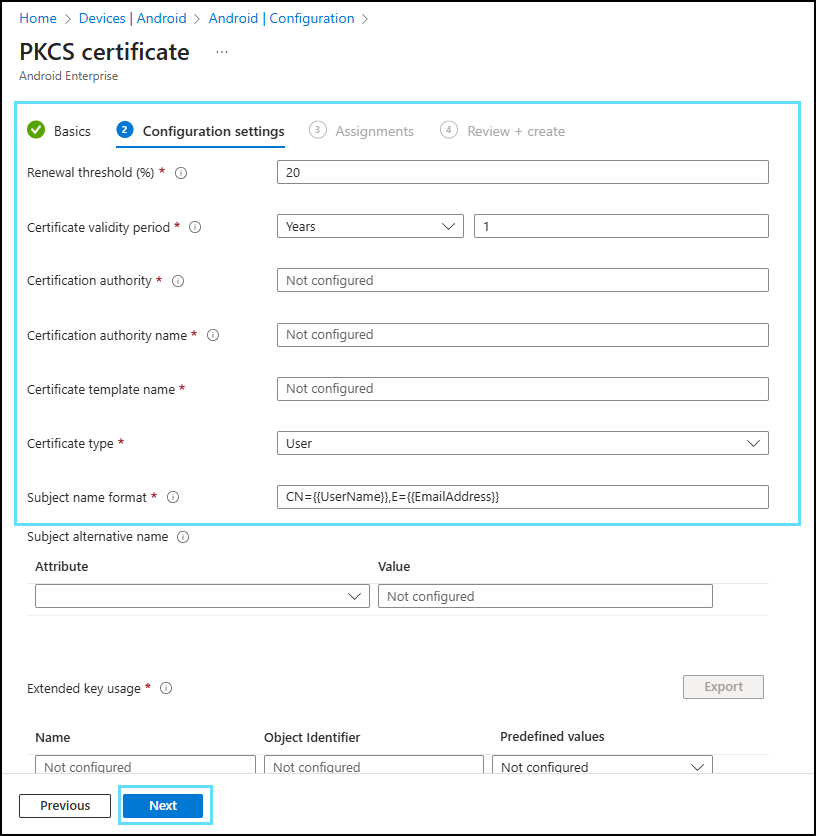
- Under the Configuration settings tab, enter the details from the Active Directory and upload the server Root Certificate.
.png?revision=1&size=bestfit&width=533&height=546)
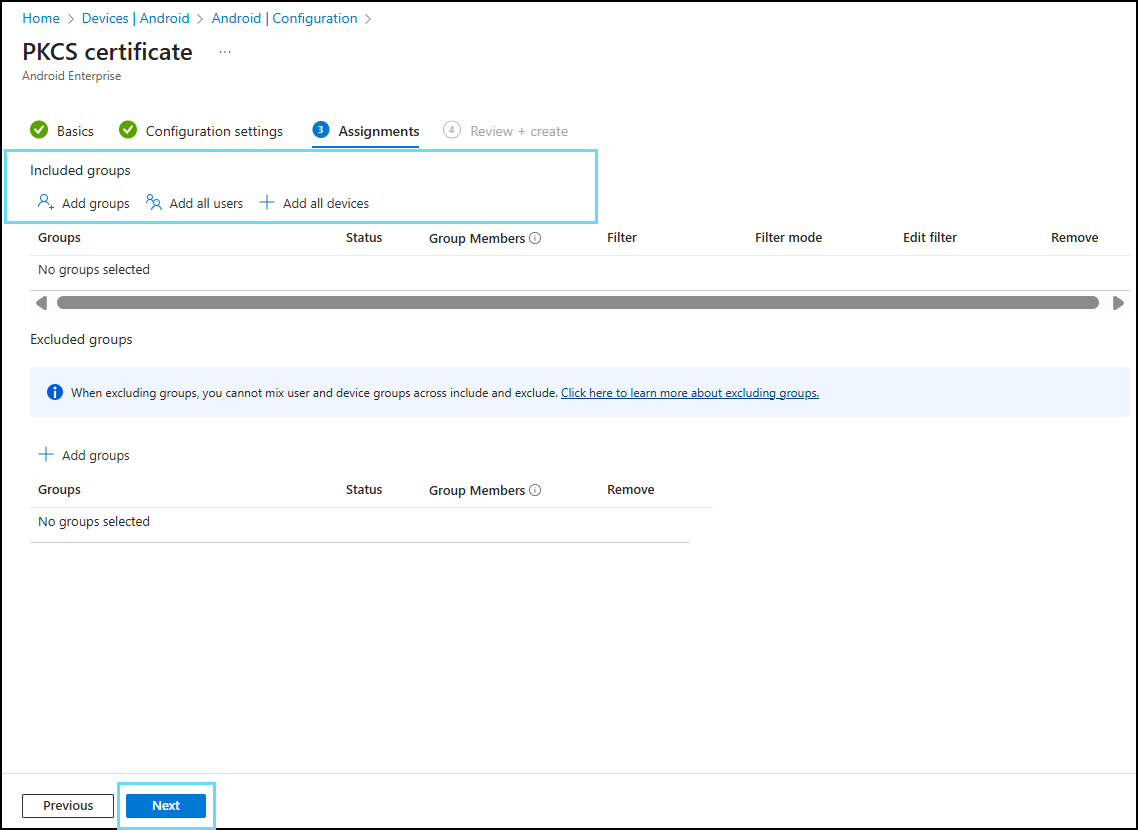
- Under the Assignments tab, add the required device or user group in the Included groups setting and click Next.
.png?revision=1&size=bestfit&width=648&height=473)
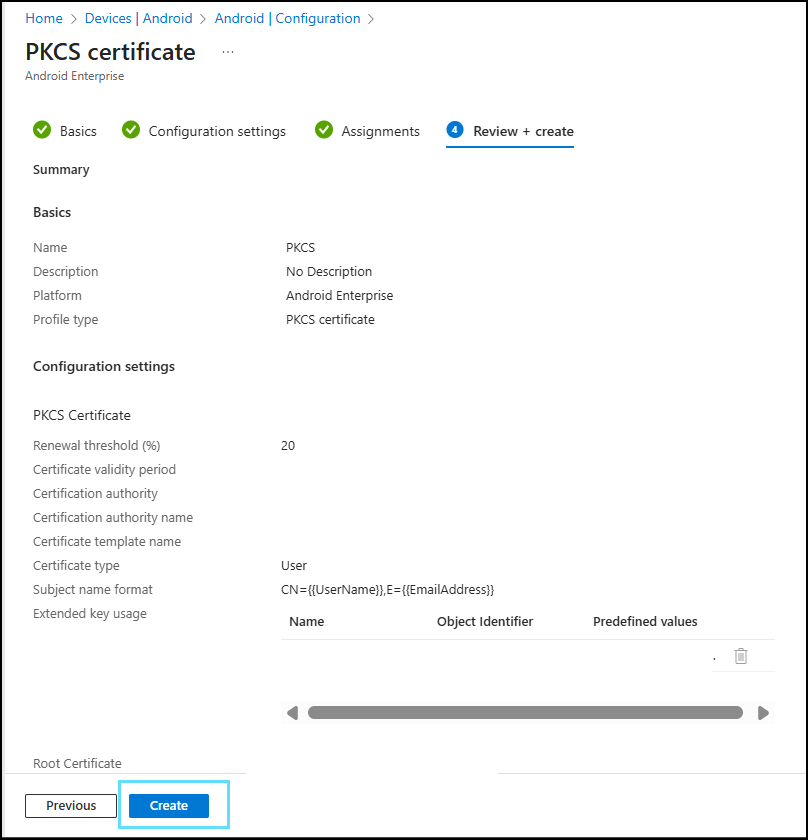
- Under the Review + create tab, review the PKCS certificate summary and click Create.
_1.png?revision=2&size=bestfit&width=567&height=589)
A PKCS trusted certificate is created and automatically pushed to the assigned device.
Create the Customer Root CA Certificate
To create the customer Root CA certificate and deploy it to the device:
- Download the scanning certificate from the customer tenant.
- In Microsoft Intune, go to Device > Android > Configuration.
- Under Policies, click Create and select New Policy.
Create a profile panel opens. - On the Create a profile panel, configure the following:
- Platform. Select Android Enterprise as the platform for the profile.
- Profile type. Select Templates as the profile type.
and select Trusted certificate as the Template name. - Click Create.
Trusted certificate window opens.
- Under the Basics tab, enter a Name and Description, and click Next.
- Under the Configuration settings tab, rename the file extension from .pem to .cer, and then select the scanning certificate downloaded from the customer tenant.
- Under the Assignments tab, add the required device or user group in the Included groups setting and click Next.
- Under the Review + create tab, review the PKCS certificate summary and click Create.
A Root CA certificate is created and automatically pushed to the assigned device.
Once the certificates are installed or pushed to the device, install the Skyhigh Mobile Client app from the Google Play Store. For more information, see Skyhigh Mobile Client App for Android Devices.
NOTE: To configure Disconnect VPN, Factory Reset, and Minimal OPG access for Android devices using MDM, see Disconnect VPN, Factory Reset, and Minimal OPG access.