

Configure Skyhigh Mobile Client for Android Devices
The Skyhigh Mobile Client application enables end users to access the Internet and private applications from Android devices securely. When end users access websites or private applications, the traffic is forwarded to the Skyhigh SWG for policy enforcement before being directed to the actual website or private application.
NOTE:
- This topic is intended for MDM administrators who manage end users' Android devices via the Skyhigh Mobile Client app.
- Skyhigh recommends creating a new user group and applying all relevant policies and configurations to the group. Once Skyhigh Mobile Client is set up and deployed, MDM administrators can add new users to the group.
- The IPsec VPN server supports only IPv4 traffic. The Android client routes both IPv4 and IPv6 traffic through the VPN tunnel to prevent traffic leakage. When IPv6 traffic is encountered, applications may fall back to IPv4 connectivity; however, this behavior varies by application and may cause slight delays in some cases.
Prerequisites
- The CA certificate should be trusted and must be available in the device trust store. Download the certificates locally for distribution. Download the forward proxy certificate from the SSE dashboard for internet access.
- Make the OPG Configuration file available on the devices:
- MDM:
- Admins can get the encoded OPG configuration string from the SSE dashboard and use it for configuration. To generate the Minimal OPG String for MDM and BYOD, see Generate Minimal OPG String for MDM and BYOD.
- BYOD:
- End users' personal devices must have a policy configuration (.OPG) file. MDM administrators can download the OPG file from the SSE dashboard and share it via email or any other sharing method. Save this policy file in a public location, such as the Downloads or Documents folder. To generate the Minimal OPG String for MDM and BYOD, see Generate Minimal OPG String for MDM and BYOD.
- MDM:
NOTE:
- To manually generate the Root CA and P12 certificates, see Generate Certificate Authority (CA) and User Identity (.p12) Certificates
- To generate the Root CA and PKCS certificates using MDM, see Create PKCS, Root CA, and Customer Root Certificate using Intune (MDM)
Push Minimal OPG using MDM
You can create an app configuration policy for the Skyhigh Mobile Client app in Microsoft Intune to enable the minimal OPG access for PA Applications option on managed devices.
To create an app configuration policy:
- In Microsoft Intune, go to Apps > Manage apps > Configuration.

- Click Create > Managed devices.

The Create app configuration policy window opens.
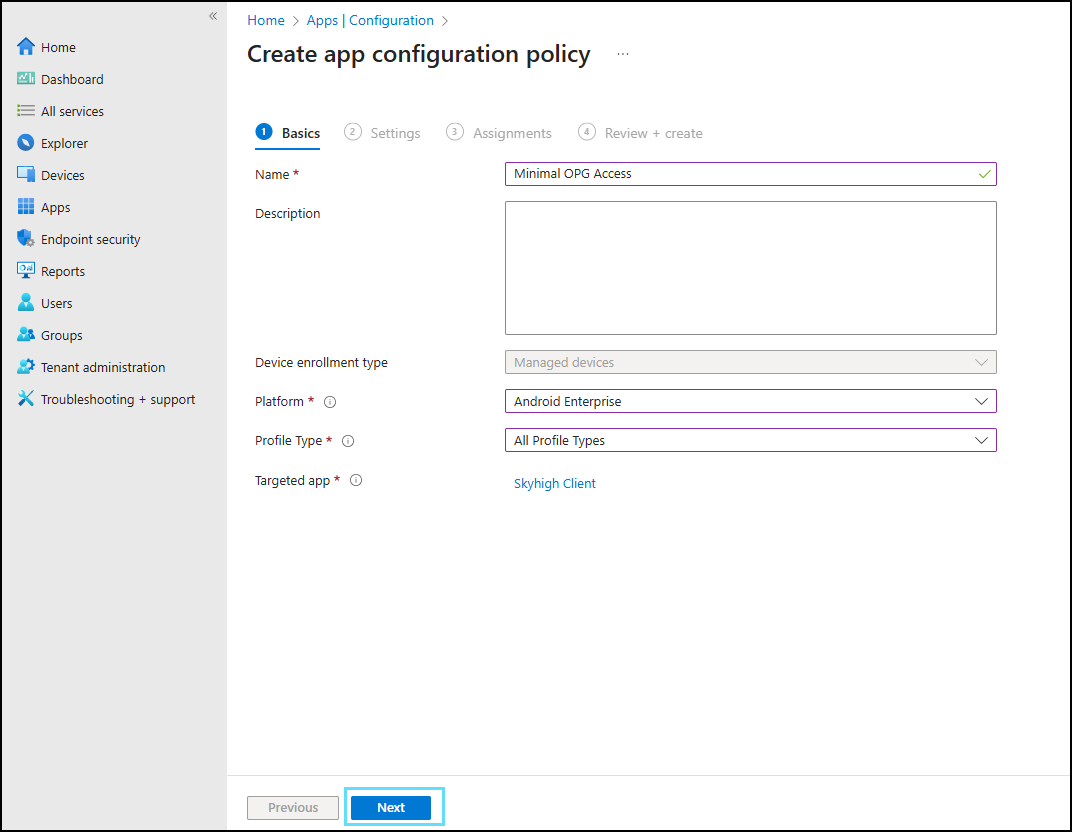
- Under the Basics tab, configure the following settings:
- Enter the Name.
- Select Android Enterprise as the Platform.
- Select All Profile Types as the Profile Type.

- Select the previously added app as the Targeted app and click OK.

- Click Next.
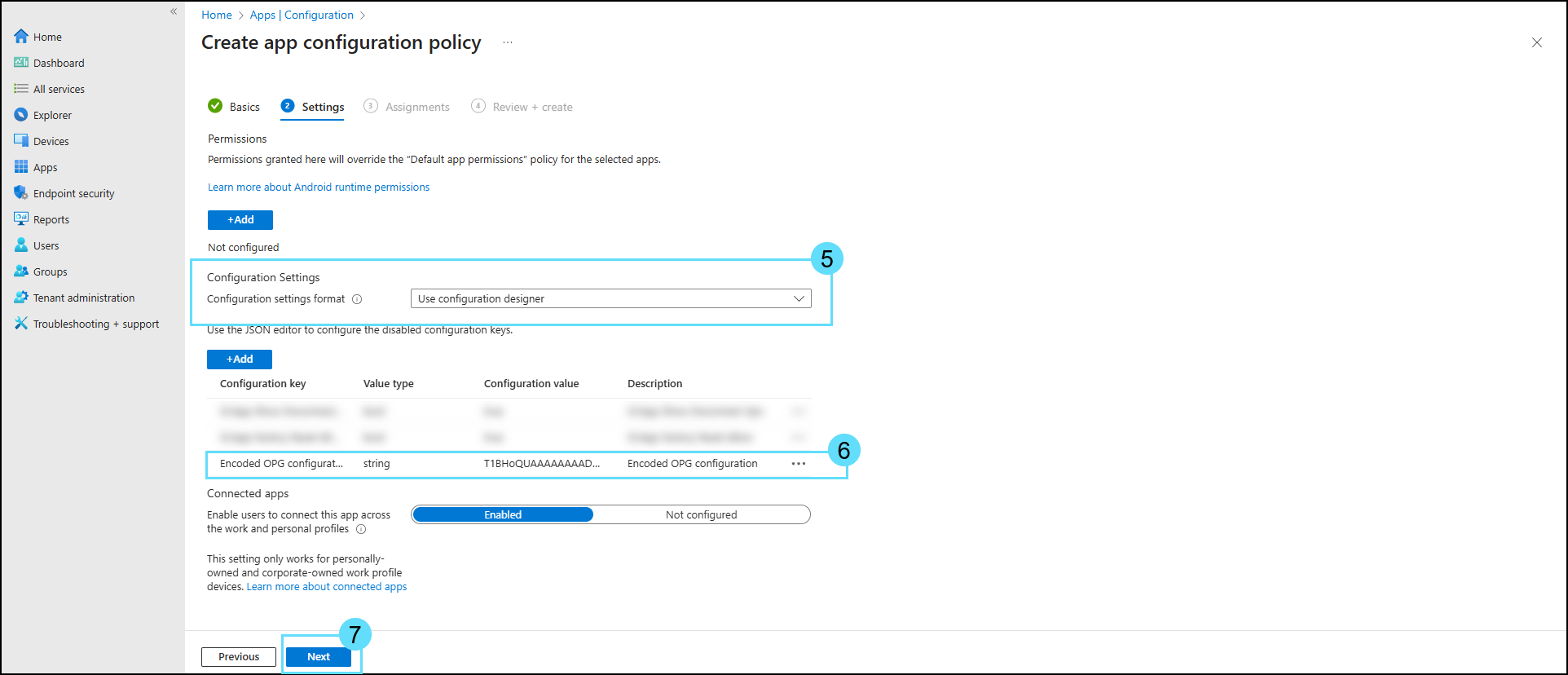
- Under the Settings tab, from the Configuration settings format dropdown, select Use configuration designer.
- Enter the Configuration key as Encoded OPG configuration, set the Value type to string, and enter the Configuration Value as opgEncodedString to enable the minimal OPG file upload option.
- Click Next.
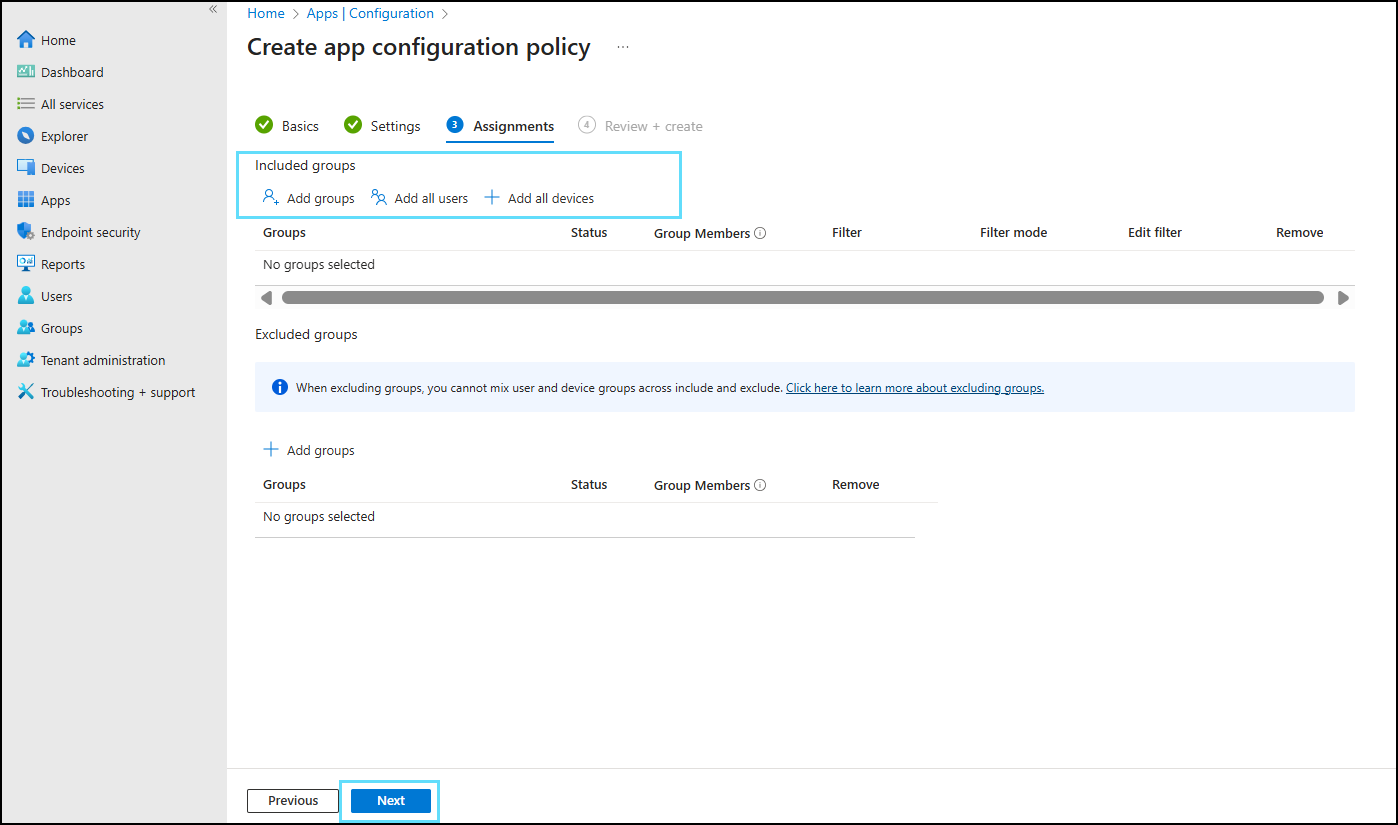
- Under the Assignments tab, add the required group in the Included groups setting and click Next.
- Under the Review + create tab, review the minimal OPG access configuration and click Create.
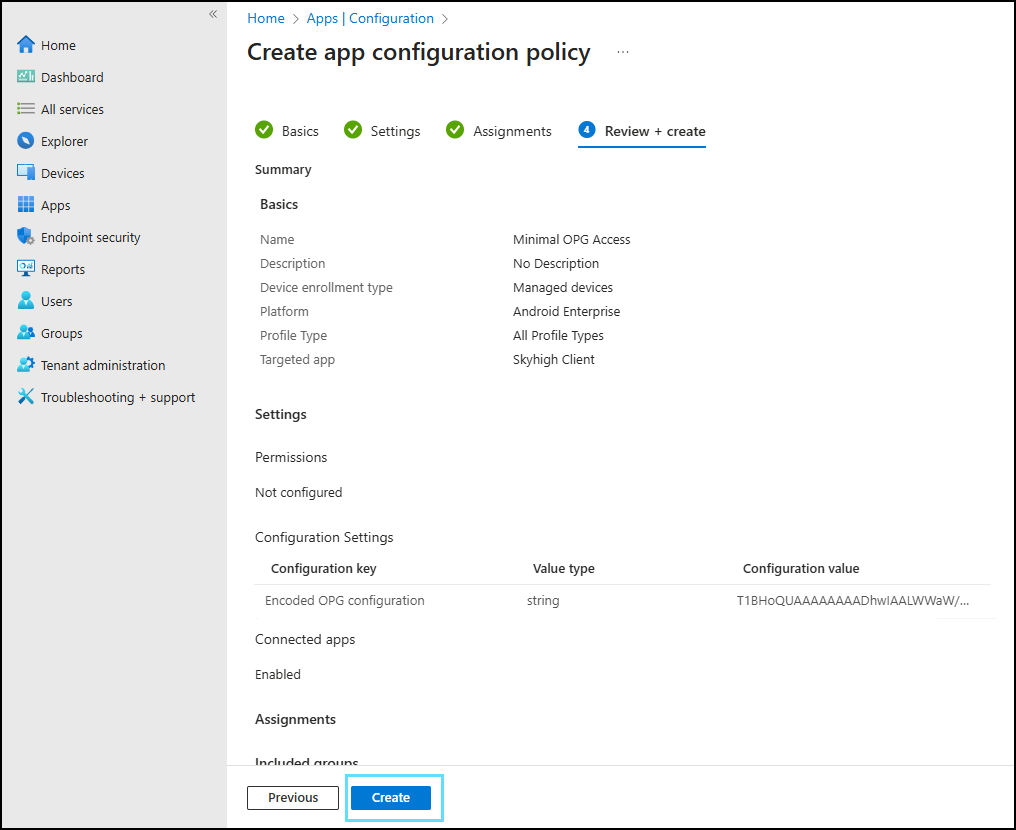
The Skyhigh Mobile Client app is now added to Intune and configured with the minimal OPG access option enabled for managed devices.
Install Skyhigh Mobile Client in BYOD
End users must install the CA certificate to prevent seeing warning messages, such as Proceed to Unsafe, in their device browsers when accessing the app. Without the necessary certificates, you may be alerted that the page they are trying to access is not private.
NOTE: The Android device should have a lock screen (pattern, biometric, pin, or password) to install and trust a CA certificate.
- Open Settings.
- Tap Security.
- Tap Encryption & Credentials.
- Tap Install a certificate.
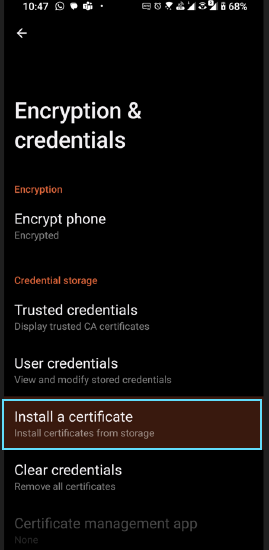
- Tap CA Certificate.

- Tap Install anyway on the alert screen.
Browse and select the certificate file and install it. Check if the certificate is available on the device.
Install Skyhigh Mobile Client
Once the CA certificate is installed on the device, install Skyhigh Mobile Client from the Google Play Store. For more details, see the Skyhigh Mobile Client Client App for Android Devices.