

Configure Per-App VPN for iOS in Workspace ONE UEM
Per-App VPN routes network traffic only from selected iOS applications through a secure tunnel. It provides managed apps, controlled access to internal resources, and keeps personal traffic outside the corporate network.
Admin enable secure tunnel routes for Workspace ONE UEM-managed applications by configuring Per-App VPN, creating the VPN profile, uploading the required certificates and certificate password, and assigning the profile to the application. After completing the configuration, the admin allows the VPN tunnel to activate automatically when the application launches, and the tunnel carries only that application's traffic.
Create a VPN Profile
To create a VPN Profile:
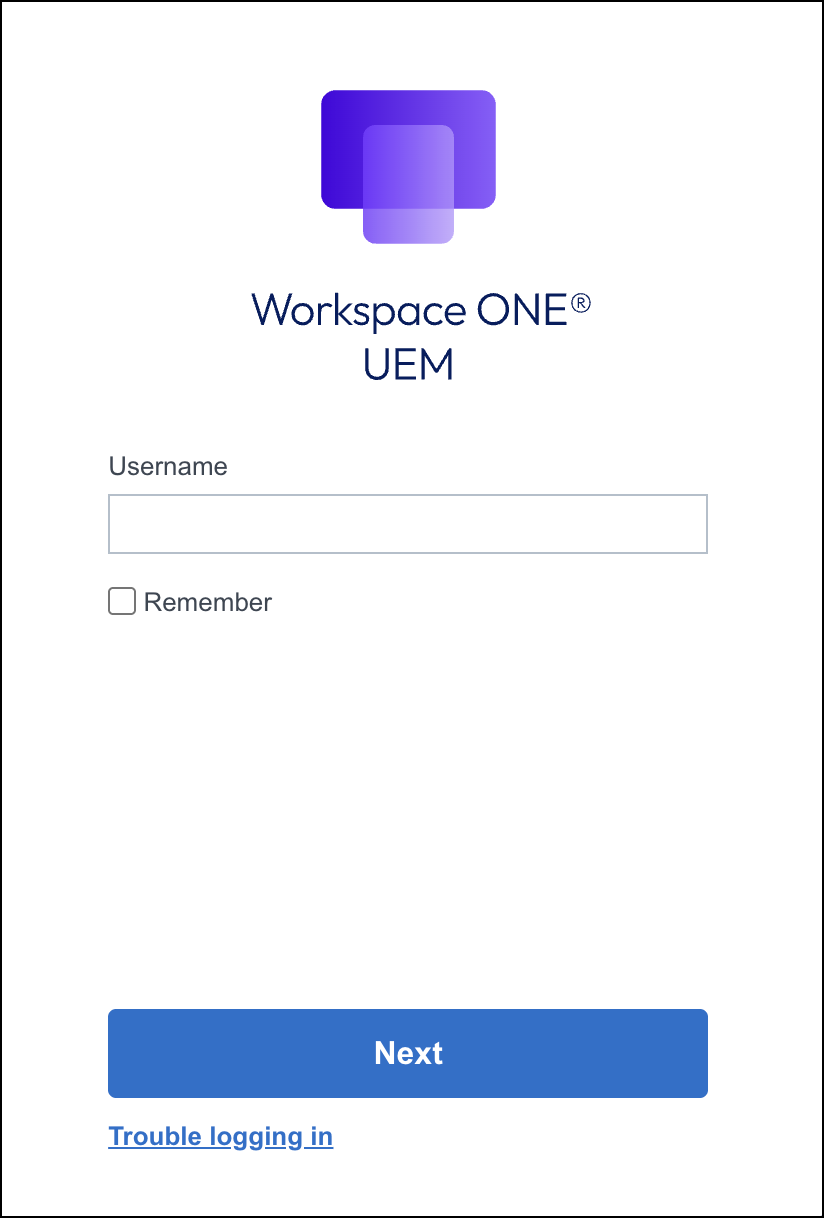
- Log in to the Workspace ONE UEM console.
- Go to Resources > Profiles & Baselines > Profiles, and select ADD > Add Profile.

- Select Apple iOS as the platform.

- Click Next.

- In the Name field, enter a name for the VPN profile.

- Click ADD in the Credentials section.

- Click CHOOSE FILE to upload the identity certificate (.p12).

- Enter a certificate password for the identity certificate (.p12) in the Certificate Password field.

- Click ATTACH CERTIFICATE.

- Click ADD > CHOOSE FILE to upload the tenant customer CA certificate.
- Click ATTACH CERTIFICATE.

- Click ADD in the VPN section to configure VPN settings.

- In the Connection Name field, enter a name for the VPN connection.
- Select Connection Type as IKEv2 from the dropdown.
- Enter mobile.skyhigh.cloud as Server.
- Enter the identity certificate common name as the Local Identifier.
- Enter mobile.skyhigh.cloud as Remote Identifier.

- Select Certificate as Machine Authentication from the dropdown.
- Select the .p12 certificate that you entered in step 8 as Credential from the dropdown.

- Enable EAP.
- Select Certificate as EAP Authentication from the dropdown.
- Select the .p12 certificate that you entered in step 8 as Credential from the dropdown.

- Enable the Per-App VPN Rules and Connect Automatically settings.

- Click NEXT.
- Configure the Assignment settings for any devices and click SAVE & PUBLISH.

The VPN profile now appears in the profiles list.

Add App Store Apps to the VPN Profile
- Go to Resources > Native Apps > Public > Add Application.

- Select Apple iOS as the Platform from the dropdown.
- Select SEARCH APP STORE as Source.
- Enter Skyhigh Client as the app name.
- Click NEXT.

- Select the Skyhigh Client app from the search result.

- Click SAVE & ASSIGN.

- Under the Distribution tab, enter an assignment name in the Name field and add device groups under Assignment Groups as needed.

- Go to Tunnel & Other Attributes tab.

- In the Per App VPN Profile setting, select the VPN profile created from the dropdown and click CREATE.

- Click SAVE.

- Click PUBLISH.

The app has been added.

The app now uses the assigned Per-App VPN. When the user opens the app, the VPN tunnel automatically activates and routes only that app’s traffic through the secure VPN connection.