

Control Agentless Notification
Agentless Notification displays when agentless actions are triggered. In some cases, these pop‑ups can be unexpected or disruptive where background actions within a page may repeatedly trigger notifications. To reduce unnecessary notifications, you can configure policies that control when agentless notifications are shown or suppressed.
Use Cases
Use Case 1: Reduce Notification Fatigue
An organization blocks the Advertising category. Since advertising sites are frequently accessed, users would see repeated agentless pop‑ups. By applying a blacklist rule, administrators suppress notifications for this category, reducing annoyance and improving user experience.
Use Case 2: Prioritize Critical Alerts (DLP Focus)
An organization wants agentless notifications to display only for Data Loss Prevention (DLP) events. Administrators disable agentless notifications globally, then selectively enable them for traffic of interest. As a result, users only see pop‑ups when sensitive data is at risk, ensuring attention is directed to high‑priority issues.
You can apply different approaches:
- Block list approach: Suppress notifications for specific categories (for example, Advertising, Telemetry services).
- Allow list approach: Allow notifications only for selected categories, e.g. Web DLP.
To use an allow list approach, first it is necessary to disable agentless notifications unless explicitly requested. Note that this is not the same as disabling the Agentless Notifications ruleset, which should remain active and scoped for all sites. This is because the primary site in the browser (used for scoping the Agentless Notifications ruleset) often is not the same location as that triggering unwanted alerts.
To Configure Don’t Show Agentless Policy:
Navigate to Settings > Web Policy > Policy Rule Set > Browser Control.
This is a generic rule set (not part of the rule set library). Use this rule to define conditions where agentless notifications should or should not display. The rule executes before the first block policy occurs.
Add a custom ruleset which disables agentless notifications by default:

The new ruleset will display at the bottom of the Browser Control ruleset:

Enter the name of new ruleset and set the criterion to All Traffic. Set the rule to apply to the request cycle only:

Add a custom rule via rule builder to the ruleset using:
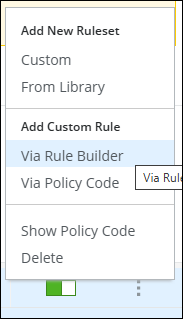
Scope the rule to also apply to All Traffic, set the action to Continue.

Select Add Event and select Enable Agentless Notifications then set that to disabled:
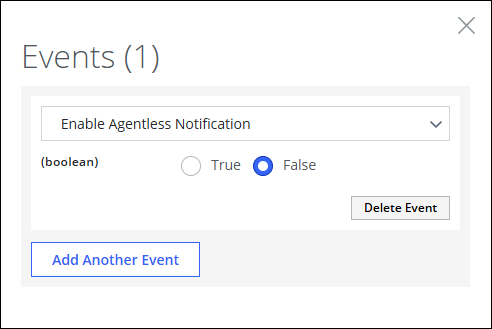
To disable Agentless Notifications only for Advertising web sites (block list example):
- Navigate to the policy where Advertising web sites are being blocked (example, in Web Filtering > Category, Reputation & Geo > Category )
- In the appropriate rule, add an event to disable Agentless Notifications:

This ensures pop‑ups are suppressed if a block occurs due to such sites.
To apply Agentless Control for Web DLP (allow list example):
- Navigate to Web Policy > Policy Rule Set > Data Protection (DLP) > Web DLP.
- Enable agentless notifications globally as above, then selectively enable them for DLP traffic.
- In code view for the DLP policy, locate the block executed when a DLP classification is triggered.
- Add the event: Enable Agentless Notifications = False.
This ensures pop‑ups are suppressed unless a DLP block occurs.